What it makes!
DRUMSBASSOTHERVOCALS
The splitter makes up to four stems of the sample on a padIt is experimental and works best on a finished piece of musicA sample can be ten minutes long at most
Quick start
The stem splitter takes the sample on a pad and separates it into up to four parts. It runs in the background, so you can go on working. The full details are in the manual. All quick start guides
The splitter makes up to four stems of the sample on a padIt is experimental and works best on a finished piece of musicA sample can be ten minutes long at most
The full download carries both modelsWith the smaller zip, put a model in the card's autorun/stems folder firstThe splitter needs a lot of free memory: DFOS keeps 250 MB free and stops with a reason on screen if there is not enough
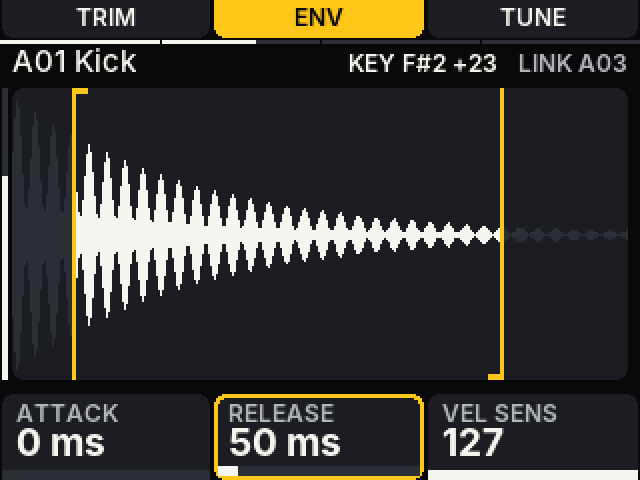
Select the pad that holds the sample. On Sample Mode an empty pad says "Empty pad" and nothing is split.
On Sample Mode, SHIFT and PUSH open Process, the list of jobs on the pad's sample. Choose Split into Stems.
The encoder chooses a row; − and + or PUSH change itSpleeter is faster and a little less cleanHT-Demucs (shown as Demucs) is slower and cleaner, so use it when quality matters more than waiting
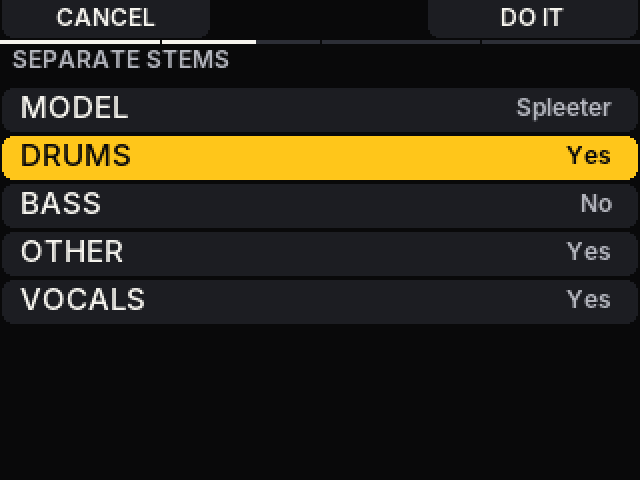
Each of the four rows is Yes (keep this stem) or No (leave it out). If all four are No, DFOS says there is nothing to make.
B3 (Do It) starts the split. B1 (Cancel) closes the sheet without starting.
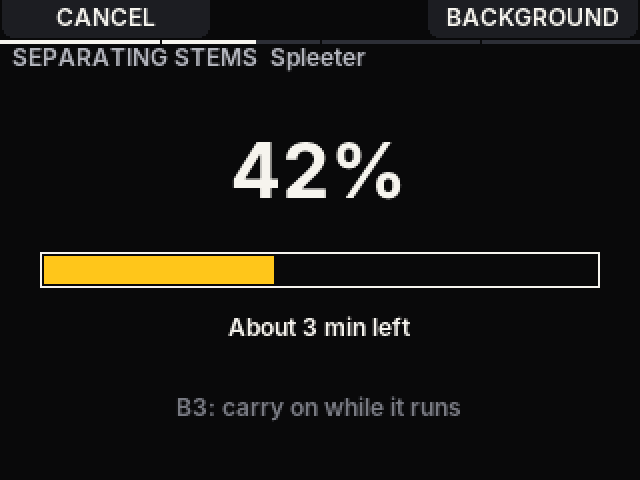
The sheet shows the model, a percentage, a bar and about how many minutes are leftB3 (Background) leaves the screen with the split still running; open Split into Stems again to see itB1 (Cancel) stops it and leaves nothing behind
While a sequence plays or you record, the split waits and says "Waiting: the song is playing". It goes on when you stop.
Each stem is a sample named after the source with the stem added, such as "Loop drums", on the next free pads after the source padThe source pad is not touchedOne undo takes the new pads awayIf there are not enough free pads, the stems stay in the Sample Pool
On a pad that plays a stem, Process > Stem: Mute / Unmute mutes every pad of the track that plays the same stem of that split, chopped pieces tooUse it again to turn them back onOn any other pad it says "This pad plays no stem"