DFOS user manual
For the Akai MPC Sample · DFOS on the stock OS 1.3.0 · 2026-10-28
DFOS is the stock MPC Sample OS with DFOS's additions built into it. It uses stock's own screens, sounds and project files. It runs from the SD card and the MPC's memory, and never changes the MPC's internal storage: switch the MPC on without the card and it is plain stock.
This manual grows with DFOS. DFOS is being built now. Each function gets its own section, with a screenshot from the MPC, once it is built and tested. Sections marked (not built yet) describe what is planned. Those marked (not yet tried on the MPC) are built and pass DFOS's own tests on the Mac, but haven't run on the MPC yet; they have no screenshots of their own, and a screenshot beside them may be from before. The full plan is in the feature list (DFOS-Features).
The quick guide (DFOS-Quick-Guide, a few pages) sums up everything DFOS adds that is built now, with its controls and shortcuts.
Quick startContents ↑
For a player who knows the stock MPC Sample: how to start DFOS, the presses it adds, and where each new part is. Each line links to its chapter, which has the details.
Start, save, leave
| Step | How |
|---|---|
| Start | With the MPC on its main screen, insert the card: DFOS starts by itself, no question. Stock's app closes (up to about 11 s), the DFOS logo shows, then Sample Mode (Starting and leaving DFOS) |
| Save first | Starting or leaving restarts stock's app, which doesn't keep unsaved work |
| Save | Stock's Save Project (SHIFT + PAD 16) saves DFOS's tracks in the same project; a project saved over on the card is kept in MPC-Sample/Backups first (Safe saving) |
| Leave | Hold SHIFT + STOP for 3 s, until every button is red: stock's own app comes back. Without the card the MPC is plain stock |
The pads play DFOS's chosen track everywhere but on stock's Sample Mode, Chop and Sample Record pages, where they stay stock's. Stock opens on its Sample Edit page, so press SEQ (or choose a track) before you play DFOS's tracks.
The new presses
| Press | What it does |
|---|---|
| SEQ held + PAD 1–16 | The track grid: chooses the track the pads play; K1 its level, K2 its pan, K3 its colour (DFOS's tracks) |
| STOP + pad | A shortcut (the defaults below). STOP still stops playback |
| STOP held | With Settings > Shortcut Map on (0.5, 1 or 2 s): the map of the STOP + pad shortcuts (The shortcut map) |
| SHIFT + pad | Stock's printed function, or a shortcut you give the pad in Settings. SHIFT + PAD 11 is DFOS's Resample (SHIFT + pad) |
| SHIFT twice | The shortcut set in Settings > SHIFT Twice (none to begin with) |
| SHIFT held | With Shortcut Map on: the map of the SHIFT + pads, where B2 Edit changes them |
| SHIFT + B3 | DFOS's menu (not on stock's Chop Mode). SEQ again on Sequence Mode, or SAMPLE again on Sample Mode, opens it too (the menu) |
| SHIFT + SEQ | The Grid on the track you play, in place of stock's Step Edit; PUSH on Sequence Mode opens it too (The Grid) |
| SHIFT + − / + | Undo and redo on DFOS's pages; on stock's pages they stay stock's |
| ERASE + pad | Erases that pad's notes on the track (Undo puts them back) |
| ERASE + PUSH | Removes the chosen item on DFOS's lists: a sequence, an insert's effect, a submix or return, a WAV or empty folder (to MPC-Sample/Trash); most ask first |
| SHIFT + SEQ RECORD | Recall: what you played in the last loop, as notes |
| SHIFT + PLAY, STOP + PLAY | Plays on from the playhead (Continue) |
| PAD BANK | DFOS's pad banks A–H (SHIFT: the bank before; held + PAD 1–8: bank A–H) (Pad banks) |
| K1, K2 on pages without knobs | DFOS's master level and stock's metronome level (K1 and K2) |
| K3 on those pages | The tempo, 60–187 BPM, set exactly in stock (Tempo) |
| The fader on DFOS's pages | The level of the track you play (the fader) |
STOP + pad, until you change them in Settings (Shortcuts):
| Pad | Opens | Pad | Opens |
|---|---|---|---|
| 1 | DFOS's menu | 7 | The metronome: off, on, record only |
| 2 | Sequence Mode | 8 | Note Repeat on or off |
| 3 | Sample Mode | 9 | None yet |
| 4 | The Mixer | 10 | The Meters page |
| 5 | DFOS's Song page | 11 | The Loudness page |
| 6 | The Grid | 12–16 | None: give them Sound, Sequences, Arrange, Perform, Undo, Redo, Tuner and more |
What DFOS adds
- 16 tracks, all DFOS's, played on stock's beat and saved in stock's project: drum tracks of 128 pads in banks A–H (DFOS's tracks, Pad banks). On the track grid, B2 turns a track without notes into a MIDI, Audio or Keygroup track (not yet tried on the MPC).
- The Grid, the step editor for every track: the pads are the steps, a lane for each pad, length, Q, swing, Chance and Humanize, and the event list (The Grid).
- Sequences: 128 of DFOS's own, chosen and queued on the Sequence list (Sequences).
- Song and Arranger: DFOS's Song page plays sequences in order (Song (DFOS)); the Arranger lays the song out on one timeline, recorded and played straight through (The Arranger), with automation lanes for each track's level, pan, sends and inserts (SHIFT + B2 on the Arrange page; not yet tried on the MPC).
- The Mixer: a strip for each track and one for stock's sound, sends to the delay and reverb returns, submixes, return 3 and the Main strip (The Mixer, Submixes).
- Effects: four insert slots on every track, submix, return and Main, with DFOS's own effects and the CPU guard (Inserts).
- The Sound page: each pad's trim, loop, envelopes, filter and tail, and Pad Play (The Sound page); up to 8 layers a pad (B1's Layers) and two LFOs with four mod slots (B3's LFO 1, LFO 2 and Mod) (not yet tried on the MPC).
- Pad Perform, a STOP + pad choice: the pads play chromatic notes, a scale, chords or progressions on a drum, MIDI or keygroup track, with an arpeggiator (not yet tried on the MPC).
- NOTE REPEAT, MUTE and 16 LEVELS on DFOS's tracks (NOTE REPEAT, MUTE and 16 LEVELS).
- The sample browser (SAMPLE SELECT): favourites, tags, the Sample Pool, previews with their own tune and start (The sample browser), and Expansions as covers (Expansions).
- Themes and looks: Settings > Theme changes the look of DFOS's pages, and Button Hints name the buttons (Themes).
- Resample, Flatten and Export Stems: the output, a pad's sound or each track as new WAVs on the card (Flatten, Resample and Save a sample, Export Stems).
- The Tuner, the Meters page and the Loudness page (The Tuner, Meters, Loudness).
- Stem separation (not built yet): a pad's sample split into drums, bass, other and vocals, from your own model file on the card.
What you needContents ↑
- An MPC Sample with the stock OS 1.3.0.
- A microSD card (exFAT) for DFOS, your projects and your saves.
- Nothing is installed in the MPC's internal storage.
Starting and leaving DFOSContents ↑
Save your project first. Starting or leaving DFOS restarts stock's app, and stock doesn't keep unsaved work when that happens.
| Step | How |
|---|---|
| Start | Switch the MPC on and wait for the main screen. Insert the card: DFOS starts by itself, with no question (not yet tried on the MPC; until 2026-11-02 the card asked Start SSH, then Start DFOS) |
| Wait | Stock's app closes (from under a second to about 11 seconds; its last screen stays up meanwhile), the DFOS startup screen shows, then stock's loading bars and Sample Mode |
| Save | Save Project as usual. With the card in, stock saves to the card's MPC-Sample/Projects (External). DFOS's tracks are saved in the same project, and a project you save over is kept in MPC-Sample/Backups first (Safe saving) |
| Leave | Hold SHIFT + STOP for 3 seconds: the only way out, as a session has no time limit. Every button turns red while stock's app closes, and stock's own app comes back, from about a second to about 11 seconds later. You can let go once the buttons are red |
| By itself | DFOS goes back to stock if stock's app fails |
| Plain stock | Switch the MPC off, then on again without the card |
Inserting the card starts DFOS at once, so save your project before you insert it. To use the MPC without DFOS, switch it on without the card.
Session timeContents ↑
A DFOS session has no time limit and no timer: it lasts until you hold SHIFT + STOP for 3 seconds. Nothing warns or ends it on its own. The Meters page shows Session: No limit.
The startup screenContents ↑
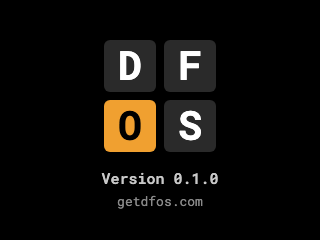
When DFOS starts, stock's app closes first; that takes from under a second to about 11 seconds, and its last screen stays up meanwhile. Then the startup screen shows the DFOS logo for 2 seconds: D, F, O and S on four pads, the O pad lit orange. Press any button, pad or knob to skip it. After it, stock's own loading bars appear, then Sample Mode.
Your own text. Settings > Startup Text puts your own text, up to 20 letters, in place of the logo: choose the row (the last one) and press PUSH or turn the encoder, type it on the name entry and press B3 Do It!. DFOS draws it at once into the card's MPC-Sample/DFOS/Startup.png, in stock's type face (a little smaller past 8 letters, so it fits), and the next start shows it. B1 on the row empties it, and the logo shows again.
The panelContents ↑
DFOS keeps every control's stock function, with these exceptions: SHIFT + SEQ opens DFOS's Grid instead of stock's Step Edit, and the pads and PAD BANK play DFOS's chosen track, except on stock's Sample Mode, Chop and Sample Record pages, where they are stock's (see DFOS's tracks); and on DFOS's own pages the fader sets the level of the track you play (the fader). Its other additions use combinations stock leaves free, such as STOP + pad.
| Area | Controls |
|---|---|
| Screen buttons | B1, B2, B3 along the top of the screen |
| Knobs | K1, K2, K3 under the screen; the fader beside the pads |
| Navigation | The encoder (turn it; press it for PUSH) and − / + |
| Modes | SAMPLE, SEQ, CHOP, PAD FX, KNOB FX, LOOP, MUTE, 16 LEVELS, NOTE REPEAT |
| Samples | SAMPLE SELECT, SAMPLE RECORD |
| Transport | SEQ RECORD, PLAY, STOP, TAP TEMPO |
| Pads | PADS 1–16 and PAD BANK |
| Other | SHIFT, ERASE, MAIN VOLUME; REC GAIN on the side |
The screenContents ↑
The screen is 320 × 240. B1–B3 choose the tabs along the top, and K1–K3 change the values along the bottom. A small arrow in the bottom right corner means SHIFT gives the page more.
On DFOS's pages
DFOS's own pages (the Grid, the Mixer, the menu and the rest) add a thin band at the very top:
| At the top | |
|---|---|
| CPU strip | A 2-pixel line across the top, as long as the MPC is busy (all four cores, the Meters page's System CPU), orange from 80 %. It moves only when the figure moves by 10 points or crosses 80 %, so it stays still under a steady load |
| Mute | A small orange tag at the top right while any track (or the Stock strip) is muted on the Mixer, or a pad with MUTE (the pad's not yet tried on the MPC) |
| Repeat | A tag while stock's NOTE REPEAT is on, as DFOS follows its presses (taken to be off when stock's app starts), with the rate DFOS's tracks repeat at: Repeat 1/16 (NOTE REPEAT; the rate not yet tried on the MPC) |
| 16 LEVELS | A tag while 16 LEVELS is on (not yet tried on the MPC) |
| Bank B | A tag while the pads play a bank past A, Bank B to Bank H (Pad banks; not yet tried on the MPC) |
Where a page uses K1–K3 (the track grid, the Mixer, the Grid and the event list, whose row is not yet tried on the MPC), the bottom row shows each knob's name, value and a bar, as stock does. A knob takes over only once it reaches the value shown; until then a small orange < or > at the end of its bar shows which way to turn it. A small arrow beside a button's or knob's name means SHIFT gives it another job.
Notices say what happened in stock's own words, in capitals, for 1.5 seconds: RECORDED 4 NOTES, ERASED 2 NOTES OF PAD A01, PAD B03 HAS NO NOTES (a pad is named by its bank, as on stock), UNDO, REDO, NOTHING TO UNDO, NOTHING TO REDO, RECALLED 3 NOTES, NOTHING TO RECALL, FULL LEVEL ENABLED, FULL LEVEL DISABLED, PAD BANK C (Pad banks) and CPU FULL (the CPU guard). (NOTHING TO REDO, NOTHING TO RECALL and PAD BANK C are not yet tried on the MPC.) Over a DFOS page they show in a box on the page; with none open, on a page of their own in place of stock's, as before.
The fader on DFOS's pages
While a DFOS page shows, the fader sets the level of the track you play (the one chosen with SEQ + pad), by the same law as stock's fader on Pad Volume: off at one end, about −6 dB in the middle, and 0 dB, a track's most, over the last 30 % of its travel towards the other end. Like the knobs, it takes over only once it reaches the track's level, and waits again when the level moves under it (another track chosen, K1 on the Mixer, a project loaded). The Mixer shows the new level. On stock's pages the fader is stock's, as always. In the sample browser, with Settings > Fader Scroll on, it scrolls the list instead.
Sample ModeContents ↑
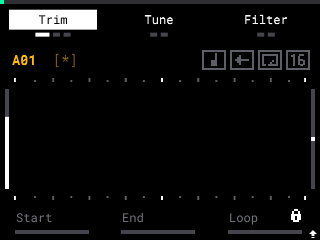
Press SAMPLE. The selected pad is shown at the top left (A01 is bank A, pad 1); hit a pad to select it and edit its sound. B1–B3 step through the pages, as in the screenshot above.
(not built yet) DFOS adds the Loop, Mode and Tail pages, the Classic filter, Loop Lock, Normalize, Trim Sample, silent select and start/end audition.
Sequence ModeContents ↑
Press SEQ. The page shows the tempo, whether it is the sequence's own (BPM: SEQ), record quantize (Rec Quant), the sequence and its time signature, the position (bar . beat, tick), the length, the timing correct value (Q) and the swing.
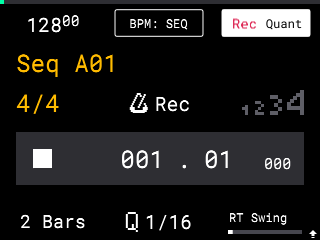
Sequence Mode stays as stock draws it. DFOS's track meters are on the Mixer, Mono / Poly is on the Sound page (its Play group), and the sequence coming next shows as Next 02 among the tags at the top right of DFOS's pages. K2 (Q) and K3 (swing) here are stock's sequence's; each DFOS track keeps its own Q and swing, set on the Grid.
Tempo
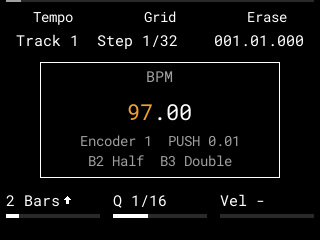
DFOS sets stock's own tempo for you, exactly to the hundredth, by playing stock's BPM window (B1 held on Sequence Mode): you may see it open for a moment. It sets whichever tempo B2 shows (SEQ or GBL), while stock is on Sequence Mode (a DFOS page over it counts). Stock's own B1, B2 and TAP TEMPO work as on stock.
| Where | |
|---|---|
| K3 on the menu, Settings, Meters, Loudness, the browser and the name entry | 60 + the knob: 60–187 BPM; it takes over once it reaches the tempo |
| B1 held on the event list | DFOS's tempo window: the encoder 1 BPM a step, PUSH the hundredths and back, B2 half, B3 double |
| K3 on the Song page | The chosen step's own tempo (0 none, 61–187), set as the step comes in |
While playing, a tempo DFOS doesn't know (after TAP TEMPO, stock's B1 or B2, its Song page or a project's load) is changed from the tempo stock's clock plays, so you hear only the change, right to a fraction of a BPM (stock's B1 may show 140.02 for 140.00); STOP sets it again exactly. Stopped, or once DFOS knows the tempo, it is exact at once.
Tested on the MPC: tempo-test (rounds 11 and 12).
Sequences
DFOS keeps up to 128 sequences of its own, each with its name, time signature, length and its 16 tracks. − / + on Sequence Mode stay stock's; DFOS's are chosen on the Sequence list, a STOP + pad choice (set a pad to Sequences in Settings). STOP stops playback, so to open the list while playing, set SHIFT Twice (or a SHIFT + pad) to Sequences too. While one is queued, the status band shows Next nn, and it comes in at the end of the playing one's loop, on the bar line. A project made on stock brings its sequences in stock's order, each with its notes.
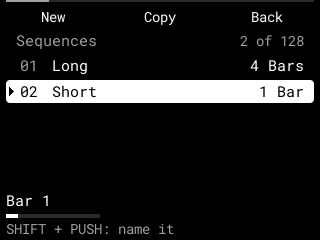
Tested on the MPC: the list, PUSH queueing the next one while playing, the switch on the loop's end, and the sequences saved and loaded back. Naming, New, Copy, Delete, SHIFT + − and K1 are not yet tried on the MPC.
| On the Sequence list | |
|---|---|
| Encoder, − / + | Choose a sequence |
| PUSH | Plays it: at once while stopped, else at the end of the playing one's loop (PUSH on it again: not next after all) |
| SHIFT + PUSH | Names it |
| B1 New, B2 Copy | A new 2-bar sequence, or a copy of the chosen one, at the end |
| ERASE + PUSH | Asks to delete it: B3 Delete, B1 Cancel (not the playing one, nor the last) |
| SHIFT + − | Puts the last deleted sequence back where it was (the last eight, until a project loads) |
| K1 | Its length: 1–128 bars (SHIFT + K1 any) |
| B3 | Back |
Song (DFOS)
DFOS's own Song page plays DFOS's sequences in order: STOP + PAD 5 (Settings' Song (DFOS); SHIFT Twice or a SHIFT + pad can open it too). Stock's own Song page stays on SHIFT + PAD 12 and the menu's Song tile. A Settings file saved before keeps pad 5 as it was (stock's Song) until you change it. Each step is a sequence and its repeats (1–16), up to 999 steps; the song is saved with the project.
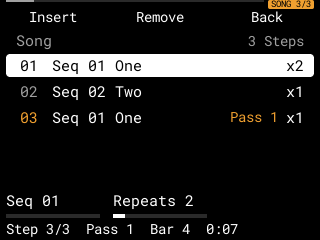
| On the Song page | |
|---|---|
| Encoder | Choose a step |
| − / +, K1 | The chosen step's sequence |
| K2 | Its repeats, 1–16 |
| K3 | Its own tempo: 0 none, else 61–187 BPM (Tempo) |
| B1 Insert | A copy of the chosen step after it (with none, the playing sequence once) |
| B2 Remove | Removes the chosen step |
| PUSH | Plays the song from the chosen step: stopped, PLAY starts it; playing, it comes in at the end of the loop |
| STOP | Ends the song |
| SHIFT + − / + | Undo and redo the steps' edits |
| B3 | Back |
While the song plays, SONG n/N shows in the status band, the playing step is orange with its pass, and the bottom line counts the step, pass, bar and time. After the last step it goes round to the first. K3 sets a step's own tempo (Tempo).
Tested on the MPC: steps inserted, the song played round with each switch on stock's beat, SONG n/N, STOP, saved and loaded back, and STOP + PAD 5 opening the page; K1, K2 and SHIFT + − / + not yet.
The Arranger
The Arranger lays the whole song out as one timeline, DFOS's 16 tracks as lanes, played and recorded straight through instead of round one sequence, up to 999 bars. Set a STOP + pad (or SHIFT Twice, or a SHIFT + pad) to Arrange: it opens the Arrange page and turns the arrangement on, so PLAY and SEQ RECORD play and record it in place of the sequence until B3 Back (or the choice again) turns it off. Stock's own sequence goes on underneath only as the clock; ARR shows in the status band.
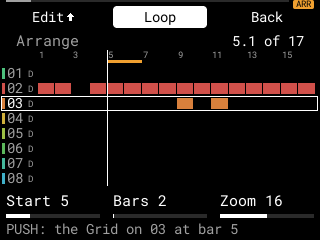
| On the Arrange page | |
|---|---|
| Encoder | The playhead a bar on or back (SHIFT: a beat) |
| − / + | The lane (it also follows the track you play) |
| K1, K2 | The loop brace's start and length (1–128 bars) |
| K3 | Zoom: 4, 8, 16, 32 or 64 bars on the screen |
| B1 Edit | On the brace, all lanes (SHIFT + B1: the chosen lane): Duplicate, Duplicate (Insert), Insert Blank Bars, Delete Bars, Copy, Paste, Paste (Insert), Paste (Merge), Clear, Insert Sequence. PUSH or B1 does it, B3 cancels |
| Insert Sequence | One of DFOS's sequences, or Song to Arrangement (the Song page's steps in order): B1 Replace or B2 Insert at the playhead's bar |
| B2 Loop | Plays round the brace, on or off |
| PUSH | The Grid on the lane's track from the playhead's bar (up to 128 bars); B3 comes back |
| SEQ RECORD, PLAY | Record into the arrangement from the playhead, straight on, or round the brace pass after pass with Loop on; the page stays open |
| SHIFT + − / + | Undo and redo the edits and takes (16 kept) |
| B3 | Back: the arrangement off |
STOP + PLAY continues from where it stopped, past stock's loop. Recall, Count-In, ERASE + pad and NOTE REPEAT work on it as on a sequence. The arrangement is saved with the project.
Tested on the MPC (arrange-test): Insert Sequence, Duplicate, Insert Blank Bars, Delete Bars and undo; playback straight through 17 bars past stock's 2-bar loop and round the loop brace; SEQ RECORD on the page, taps kept on sixteenths in both; saved and loaded back. The other edits, Song to Arrangement and PUSH's Grid not yet.
On DFOS's tracks too
On Sequence Mode, stock's sequence functions still reach stock and change its own sequence, and DFOS does the same to all 16 of its tracks:
| On Sequence Mode | |
|---|---|
| SHIFT + PAD 2 | Half Seq: each track's length halved (not below a bar), its notes past the new end deleted |
| SHIFT + PAD 3 | Double Seq: each track's length doubled (up to 128 bars), its notes repeated in the second half |
| SHIFT + PAD 6 / 7 | Half / Double Speed: every note twice as far from the start, or half as far; the length stays, and notes that end up past it are kept, unheard |
| B3, SHIFT + PAD 10 | Rec Quant on or off: DFOS's recording is set to the nearest step only while it is on (on to begin with, and as a project loaded has it) (SHIFT + PAD 10 and a project's own not yet tried on the MPC) |
| SHIFT + PAD 4 | Count-In (below) |
| SHIFT + K2 | The time signature: DFOS's tracks keep their length in bars of it, and the Grid counts its bars (tested on the MPC, format-test) |
| PUSH | Opens the Grid on the track you play (stock's PUSH does nothing here) |
| SEQ again | Opens DFOS's menu, when you let go of it (stock does nothing with it) |
Each track's change is its own step to undo; the empty tracks are changed first, so Undo reaches the tracks with notes first (not yet tried on the MPC). DFOS follows these only while it can tell from your presses that stock is on Sequence Mode: from SEQ on, until something takes stock to another page (its Project menu, Time Correct or the Song page, say).
Count-In. SHIFT + PAD 4 turns stock's count-in on or off; it is off every time stock's app starts. With it on and SEQ RECORD armed, PLAY shows stock's full-screen count, 1, 2, 3, 4, a number a beat, and the sequence starts a bar later: DFOS's tracks start with it. PLAY without SEQ RECORD starts at once. Settings > Count-In On turns stock's count-in on for you before your first recording of the session.
Continue. SHIFT + PLAY plays on from the playhead (stock goes on from the 1/16 at or before it), and DFOS's tracks go on from there too, each at its own place in its loop. STOP + PLAY does the same: STOP stops as always, and once you let go of STOP, DFOS plays SHIFT + PLAY to stock. PLAY alone always starts from the top.
Step EditContents ↑
SHIFT + SEQ opens DFOS's Grid, DFOS's step editor, on whichever track you play (The Grid), in place of stock's Step Edit. The Grid's B1 opens its event list. PUSH on Sequence Mode opens it too.
ProjectsContents ↑
Hold SHIFT and press PAD 16 for the Project menu: Load Project, Save Project, New Project and SD Card Access. Turn the encoder to choose, and press it (PUSH) to open.
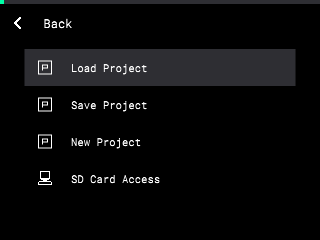
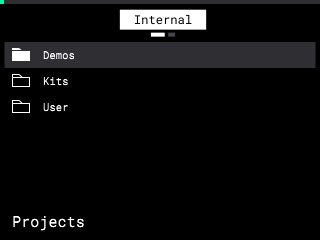
Load Project opens a browser. Internal is the MPC's own storage, with Demos, Kits and User (your own projects); the small marks under Internal show that there is a second place. B2 switches to External, the card's MPC-Sample/Projects, and back. Choose a project with the encoder or − / + and press the encoder.
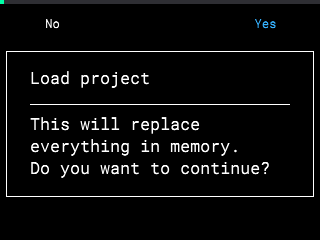
Loading replaces what is in memory, so the MPC asks first: B1 No, B3 Yes. A loaded project opens on Sample Mode, and DFOS's tracks are the project's (track 1 with its kit and its own steps).
Load Kit (B3 in the browser, without the question) takes only the highlighted project's kit: it goes onto stock's pads and onto DFOS's track 1, and everything else stays as it was, track 1's notes and DFOS's other tracks included.
Save Project asks for a name (B1 Cancel, B2 Erase, B3 Do It!) and shows where it will save.
Before stock saves over a project on the card, DFOS keeps a copy of it: see Safe saving and backups.
Stock's Save Project saves where stock always does: with the card in, the card's MPC-Sample/Projects (Internal > User is the card's MPC-Sample/Saves while DFOS runs). Your existing files are never lost.
Safe saving and backupsContents ↑
Stock replaces a project of the same name without asking, and its save leaves only the project's own samples in the project's folder. So before stock saves over a project on the card (in a folder of the card's MPC-Sample, such as Projects, or in Internal > User, which is the card's MPC-Sample/Saves while DFOS runs), DFOS copies the project as it is, its .xpj and its folder, to MPC-Sample/Backups/NAME date time on the same card, "project 2026-10-30 220941" for example. Every file there is new: nothing is overwritten or deleted. A project saved under a new name has nothing to keep, so it gets no backup.
If the copy can't be made (a full card, say), stock's save is refused and fails, so nothing is replaced that isn't kept. Save again once there is room.
To go back to an older version, copy its .xpj and its folder out of the backup on the Mac. Backups grows with every save over a project: delete old backups on the Mac when you no longer need them.
A project saved in the MPC's own internal storage is copied to the card's MPC-Sample/Saves once stock has saved it (not yet tried on the MPC; DFOS never writes the internal storage).
DFOS's tracksContents ↑
All 16 tracks are DFOS's drum tracks, and they all work the same way. They play with stock, on stock's beat, and are saved in stock's project. Track 1 starts with the loaded project's own kit (stock's pads, sounding as stock plays them) and its own beat: the notes of the sequence that was current when you saved it, on any of its 128 pads (pads 1–16 only, before the pad banks), so you see them on the Grid and edit them there. Tracks 2–16 start with DFOS's kit.
Choosing a track. Hold SEQ and hit a pad: the track grid shows while SEQ is held, laid out like the pads. PADS 1–16 choose tracks 1–16, and a track you choose is a drum track from then on ("Drum" on the grid, with its colour down the left; the Mixer shows the same colour under the track's name). Track 1 is always in use. With SEQ held, K1 sets the chosen track's level and K2 its pan; each knob takes over once it reaches the value shown.
Not yet tried on the MPC: with SEQ held, K3 chooses the chosen track's colour: Auto (by its number) or one of 16. The track grid and the Mixer show it, and it is saved with the project. A track muted on the Mixer shows an orange M on the track grid, and a soloed one a white S.
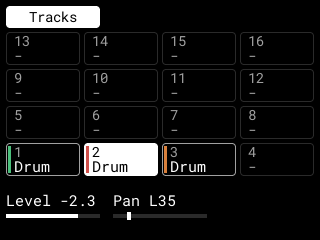
Stock's sample pages. On stock's Sample Mode, Chop and Sample Record pages the pads are stock's, as printed: they pick and play stock's own pads there, so trimming, chopping and recording onto a pad work as on stock. Everywhere else, DFOS's pages included, they play the track you chose. Stock shows its Sample Edit page when DFOS starts and after every project load, so press SEQ (or choose a track) before you play DFOS's tracks.
| With a track chosen | |
|---|---|
| The pads | Play that track (not on stock's sample pages, above); SHIFT + pad still runs stock's pad functions |
| SEQ RECORD, then PLAY | Records your pads into that track, set to the nearest step at the track's Q (1/16 unless you change it on the Grid), pass after pass while the sequence loops. STOP ends recording, and a notice says how many notes the take kept |
| PLAY | All of DFOS's tracks play with stock's sequence, on its beat |
| ERASE + pad | Erases all of that pad's notes on the track, and a notice says how many. Undo puts them back |
| SHIFT + SEQ RECORD | Recall: brings back what you played on the track in the last loop while not recording, as notes (one step to undo) |
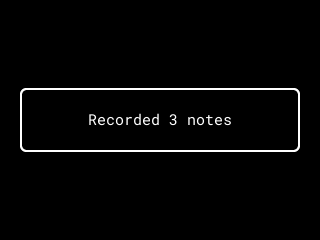
A notice shows for 1.5 seconds in place of stock's screen, then stock's page is back. The panel works as usual meanwhile: whatever you press reaches stock, which shows it when the notice goes. The notices now use stock's own words, in capitals (RECORDED 3 NOTES); the screenshot is from before.
Their sounds. Track 1's are the loaded project's own kit, until you change them, at the level stock plays its track at (−3.0 dB on the Mixer at stock's own default track volume; tracks 2–16 start at −1.9 dB). Stock's master compressor (SHIFT + PAD 5) works on stock's own sound only, not yet on DFOS's tracks. Tracks 2–16's are the WAVs in the card's MPC-Sample/DFOS Kit folder, the first 16 by name, for bank A's pads A01–A16; banks B–H start empty. Without that folder, DFOS uses a kit of stock's factory sounds: kicks, snares, hats, claps, toms, cymbals and more.
Track 1 takes the project's kit and its notes when the project loads. A sample you record, trim or chop on stock's sample pages afterwards reaches track 1 once you save the project and load it again (or put it on the pad with the sample browser). On those pages SEQ RECORD records into stock's own sequence, which stock plays beside DFOS's tracks (you hear it on the Mixer's Stock strip); those notes move to track 1 too the next time the project loads.
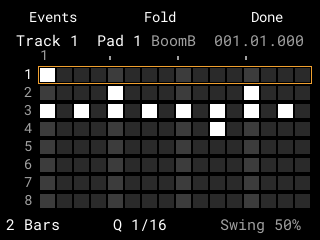
Notes track 1 leaves to stock. Muted notes, notes with a probability under 100 % or a ratchet, and the notes of the project's other sequences stay in stock's own sequence and play as before, on the Stock strip. Notes on banks B–H come onto track 1 too (tested on the MPC, bank-test), so a project that plays mostly bank B and C pads now has its beat on track 1's Grid.
Saving. Stock's Save Project saves DFOS's tracks as well: DFOS adds them to the project file after stock has written it. Loading the project brings them back. Plain stock opens the same file as it always does; it doesn't play DFOS's tracks, and that includes track 1's notes: once a project is saved under DFOS, plain stock opens its current sequence without the notes track 1 took. Stock replaces a project of the same name without asking; on the card, DFOS keeps the old one in MPC-Sample/Backups first (Safe saving). To keep an original for plain stock, save a copy under a new name.
Not yet. DFOS's tracks loop at the length of the sequence that was current when the project was loaded (2 bars for a new one), or the length set on the Grid. They don't follow a change of stock's sequence or length made afterwards. They do follow stock's time signature, from the project and from SHIFT + K2 on Sequence Mode (not yet tried on the MPC).
Pad banks
Each of DFOS's tracks has 128 pads, in eight banks of 16, named as stock names them: A01 to A16, B01 to B16 and so on to H16. One bank is chosen for all tracks; it is A each time DFOS starts, and isn't saved.
| Press | |
|---|---|
| PAD BANK | The next bank (after H, A again) |
| SHIFT + PAD BANK | The bank before |
| PAD BANK held + PAD 1–8 | Bank A to H |
The pads, ERASE + pad, the Sound page, the sample browser's destination and the event list then use that bank's pads. NOTE REPEAT and 16 LEVELS go by the pad you press: 16 LEVELS' PAD 5 is level 5 in any bank. On DFOS's pages the Bank B tag shows while the bank is past A; with no DFOS page open, a notice says PAD BANK C. On stock's Sample Mode, Chop and Sample Record pages PAD BANK is stock's, for stock's own pads.
Tested on the MPC (bank-test): the three presses, and the pads playing that bank's sounds. The tag and the notice are not yet tried.
Full LevelContents ↑
SHIFT + PAD 1 is Full Level, as printed above the pad. While it is on, every hit on DFOS's tracks plays and records at full velocity (127), however hard you hit, and every step you put on the Grid is at 127. A notice says Full Level On or Full Level Off for 1.5 seconds, in place of stock's own pop-up (in stock's words now, FULL LEVEL ENABLED or FULL LEVEL DISABLED; the screenshot is from before).
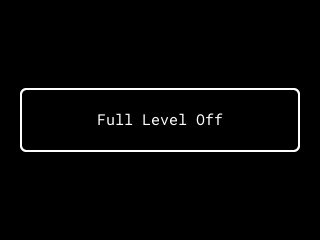
A DFOS session starts with Full Level on (Settings > Full Level at Start, on to begin with). Stock's own Full Level, for stock's pads on its sample pages, is always off when stock's app starts, so DFOS keeps the two in step: with Full Level at Start on, the first SHIFT + PAD 1 turns only DFOS's off, and from then on each press turns both on or off together. With Full Level at Start off, both start off.
NOTE REPEAT, MUTE and 16 LEVELSContents ↑
These three buttons work on DFOS's tracks as on stock's pads. Each press still reaches stock too, so stock's own lights and pages show as usual.
NOTE REPEAT. Press it to turn it on, again to turn it off; or hold it while you play a pad, and it is on only while you hold it. While it is on, a pad you hold repeats at its track's Q (the Grid's K2, 1/16 to begin with). While the sequence plays, the repeats fall on the track's steps (with its swing), the first at the next step; stopped, they start at your hit, at the tempo last played (120 BPM if none yet). Press harder or softer while holding the pad and the repeats follow. With SEQ RECORD armed they are recorded, as hits are. (Tried on the MPC: a pad held while the sequence plays. Not yet tried: stopped, the pressure and recording.)
| NOTE REPEAT held + (not yet tried on the MPC) | |
|---|---|
| B1, B2, B3 | The track's Q: 1/8, 1/16 or 1/32 |
| SHIFT + B1, SHIFT + B2 | 1/8T, 1/16T (SHIFT + B3 stays the menu, so 1/32T is on the Grid's K2 only) |
| − / + | A step coarser or finer, from 1/4 to 1/32 |
Each change of Q is one step to undo, and the Grid shows it. The Repeat tag at the top right shows the rate, Repeat 1/16 (not yet tried on the MPC).
MUTE. On and off as NOTE REPEAT (a press, or held). While it is on, a pad mutes or unmutes that pad on the track you play, instead of playing: a sound still ringing stops, and its notes stay but are silent. SHIFT + MUTE unmutes every pad of the track. The pads' mutes aren't saved with the project, and loading a project unmutes them all. The Mute tag shows while a pad is muted (not yet tried on the MPC).
16 LEVELS. A press turns it on, the next off. While it is on, the 16 pads all play the pad you hit last, at 16 levels, from PAD 1 up to PAD 16. Hitting them doesn't change which pad they play. SHIFT + 16 LEVELS chooses what the levels change:
| Levels of | PAD n plays the pad |
|---|---|
| Velocity (to begin with) | At velocity n × 127 / 16 |
| Tune | n − 1 semitones up (PAD 1 as it is) (not yet tried on the MPC) |
| Filter | Through its filter at a cutoff from 20 Hz up to 20 kHz on PAD 16 (an LPF2 if it has no filter) (not yet tried on the MPC) |
Recording keeps each hit's velocity and tune; a Filter level isn't kept. The pads' own sounds don't change. The 16 LEVELS tag shows while it is on (not yet tried on the MPC).
The repeats and the 16 LEVELS hits play through the track's strip on the Mixer, so its level, pan and sends reach them. Not measured yet: what stock's own buttons do when held with pads, or with SHIFT or STOP.
The GridContents ↑
The Grid is DFOS's step editor, for every track. Choose a track (hold SEQ and hit a pad) and press SHIFT + SEQ, from any page (or STOP + PAD 6, or PUSH on Sequence Mode).
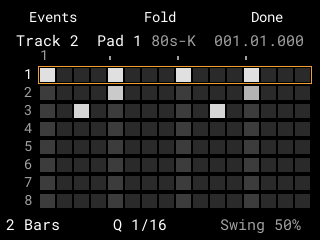
Each of the track's pads has a row, its lane, eight on screen, named A01, A02 and so on; the lane you work on is framed in orange. (Not yet tried on the MPC: all 128 pads have a lane, and PAD BANK jumps to the first lane of a bank, Pad banks.) It opens on the lane of the pad you played last, at its first note (while playing, where the sequence is). The 16 pads are the 16 steps across, at the track's Q: PAD 1 is the first step, PAD 16 the last. A brighter step is a harder hit. Above the steps, the numbers are bars and the marks beats. The top line shows the track, the lane, its sample and where the sequence is (bar . beat . tick); the bottom line the length (Sync, 3 Beats, 1 Bar, 8 Bars…), Q and the swing (or the selected step's velocity).
| On the Grid | |
|---|---|
| PAD n | Step n on or off, at the pad's velocity. While stopped, you hear the step as it goes on |
| ERASE + PAD n | Clears step n |
| SAMPLE + PAD n | Selects step n without changing it or sounding it: it is outlined in white, and the bottom line shows its velocity |
| K3 | The selected step's velocity (one turn is one step to undo); with no step selected, the track's swing |
| − / + | The lane before or after |
| Encoder | The next or previous 16 steps |
| SHIFT + encoder | 16, 32 or 64 steps on screen; the pads still reach the 16 framed in orange |
| K1 | The track's length: 1, 2, 4, 8, 16, 32, 64 or 128 bars, at the same knob positions as stock's own length knob (up to 32 bars before). At its very bottom, Sync: the track loops at the sequence's length, whatever it becomes |
| SHIFT + K1 | Any length from 1 to 128 bars. Below 1 bar it goes a beat at a time (1, 2 or 3 beats in 4/4), then a bar at a time, up to 125 bars in 4/4; 128 is on K1 |
| K2 | Q: 1/4, 1/8, 1/8T, 1/16, 1/16T, 1/32, 1/32T, 1/64 or 1/64T. Notes stay where they are, shown in the step they fall in; recording on the track uses the same Q |
| B1 | Events: the event list, on the selected step (or the first of the pads' 16) and the lane |
| B2 | Fold: only the lanes with notes; again to show them all |
| B3 | Done: back to the page you came from |
| PAD BANK | The first lane of the next bank (with SHIFT the bank before; held + PAD 1–8, bank A–H) (PAD BANK and held + PAD 8 tested on the MPC, bank-test) |
| SHIFT + − / + | Undo and redo, with UNDO or REDO over the Grid (redo not yet tried on the MPC) |
Swing (K3, 50–75 %) plays every second step of the track's Q late: at 50 % straight, at 66 % close to triplets. Notes that aren't on the Q grid stay where they are. Each track has its own, saved with the project.
While the sequence plays, the Grid follows it, and a white mark under the bar numbers shows the step playing. Turning the encoder stops following until the next PLAY. Like the knobs on the track grid, K1 and K2 take over once they reach the value shown.
A shorter length hides the notes past its end without erasing them, and a longer one brings them back. They are saved with the project as they are.
Editing several steps
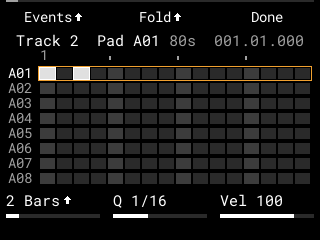
| On the Grid | |
|---|---|
| SAMPLE held + pads | Selects several steps: the first pad after you press SAMPLE starts a new selection, the next add to it, and a selected step's pad again takes it out. Each is outlined in white |
| K3 | With steps selected, the velocity of all their notes on the lane (one turn is one step to undo) |
| SHIFT + B1 | Copies the lane's notes in the selected steps (with none selected, the 16 on the pads) |
| SHIFT + B2, or ERASE + NOTE REPEAT | Pastes them from the first selected step (with none selected, the first of the pads' 16), over the lane's notes in those steps only; notes that would fall past the track's end are left out. One step to undo |
| PUSH | With steps selected: the encoder moves their notes instead of paging, by Q (with SHIFT, by a tick), round the loop; each move is one step to undo, and the selection goes with the notes. A small orange mark shows it is on. PUSH again (or letting the selection go) goes back to paging |
| SHIFT + K2 | With steps selected, their notes' Chance: 0–100 % (100 to begin with), how likely each is to play each time round |
| SHIFT + K3 | With steps selected, their notes' Humanize: 0–100 %; at 100 % each pass's velocity moves up to 32 either way and the note comes up to 20 ms late |
Chance and Humanize are drawn afresh each time round, but the same way each time from PLAY, so a take (or an export) plays the same again. With SHIFT held the knob row shows K2 Chance and K3 Human; SHIFT + − / + undo the last turn; copy and paste and moving notes carry them; they are saved with the project. They act on a sequence's notes, not yet on the arrangement's.
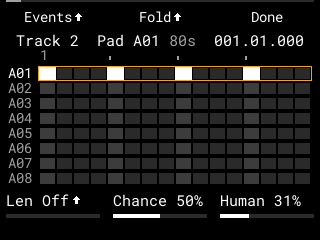 Tested on the MPC (stems-test): 0 % never, 100 % always, 50 % about half, the same slots again from PLAY, and Humanize's lateness and spread.
Settings > Pad Step Order chooses which pad reaches which step: Up (to begin with: PAD 1 is step 1, PAD 16 step 16) or Down (the top row, PAD 13–16, is steps 1–4, then PAD 9–12, 5–8 and 1–4, read like a page).
The bottom row shows K1's length (with the SHIFT arrow), K2's Q and K3's swing or velocity as bars, and B1 and B2 have the SHIFT arrow for copy and paste. A track you can't hear (muted on the Mixer, or another track soloed) has its notes drawn dimmed. The length counts bars of stock's time signature. A track holds up to 4096 notes, about 64 bars of a lane filled at 1/64.
While the Grid shows, the pads, B1–B3, − / +, ERASE, the knobs and the encoder are the Grid's, so stock's page underneath stays as it was. PLAY, STOP, SHIFT and MAIN VOLUME work as usual, and the fader sets the track's level (the fader). Any other button closes the Grid and does its own job.
The event list (B1 on the Grid) shows the notes on one step of the track's Q, a row each: the pad, its sample, and its velocity; a note recorded a little off the step shows by how many ticks.
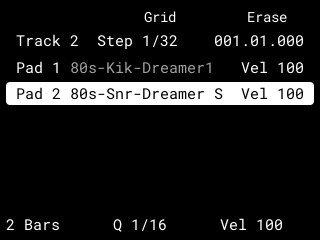
| In the event list | |
|---|---|
| Encoder | The next or previous step, round the loop |
| − / + | The note before or after on the step |
| A pad | Chooses that pad's note on the step. On an empty step while SEQ RECORD is armed, it adds one at the pad's velocity |
| K3 | The chosen note's velocity |
| K1, K2 | The length and Q, as on the Grid (with SHIFT + K1, Sync, beats and the bars on the bottom row: not yet tried on the MPC) |
| B2 | Back to the Grid |
| B3 | Erases the chosen note (Undo puts it back) |
| ERASE + pad | Asks first, with how many notes the pad has on the track: B1 Cancel, B3 Do It! erases them all (Undo puts them back) |
The fader and note lengths on the Grid
On the Grid the fader is its zoom and nudge, not the track's level. It acts once it reaches the place shown, as the knobs do.
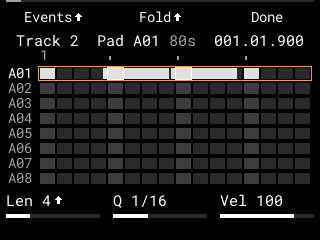
| On the Grid | |
|---|---|
| Fader, nothing selected | 16, 32 or 64 steps on screen, a third of its travel each |
| SHIFT + fader | 4, 8 or 16 lanes |
| Fader, steps selected | Nudges their notes up to half a Q early or late (from its middle); each turn is one step to undo |
| K1, steps selected | Their notes' length in Q steps (SHIFT + K1: in ticks); notes are drawn to their end. Drum hits still play to their sample's end |
| Fader, in the event list | Nudges the chosen note's pad's notes on the step, shown as −60 or +60 |
With a track shorter than the sequence, the Grid shows its repeats dimmed past its end. The top line shows the selected note's place, nudge and all.
B1 held on the event list opens DFOS's tempo window (Tempo).
The Sound pageContents ↑
The menu's Sound tile (or a STOP + pad set to Sound, or PUSH on a Mixer strip) opens each pad's own sound on the track you play. Hit a pad to choose it (you hear it as usual); the top line shows the track, the pad and its sample. The pads are the bank's the pads play, named A01 to H16 (not yet tried on the MPC).
The page is in groups, as stock's Sample Mode is, with K1–K3 for the values.
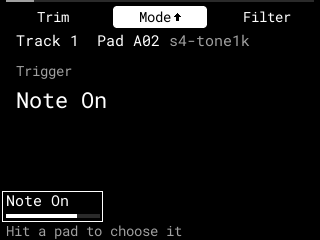
| Button | Groups |
|---|---|
| B1 | Trim, Loop, Mix, Amp Env |
| B2 | Tune, Mode, Play, Tail |
| B3 | Filter, Filt Env |
A button shows the group it showed last; press it again for its next group. Each group has its values on K1–K3:
| Group | K1 | K2 | K3 |
|---|---|---|---|
| Trim | Start | End | Loop Start |
| Loop | Loop | Reverse | Crossfade |
| Mix | Level | Pan | |
| Amp Env | Attack | Decay | Velocity |
| Tune | Tune | Fine | |
| Mode | Trigger | ||
| Play | Mono / Poly | Mute group | |
| Tail | Length | Start | |
| Filter | Cutoff | Resonance | Type |
| Filt Env | Attack | Decay | Depth (SHIFT + K2: Decay From) |
| Value | |
|---|---|
| Start | 0–100 % of the sample: where a hit starts (0 %, the start, to begin with) |
| End | 0–100 %: where it stops (100 %, the sample's end, to begin with); never before the start |
| Loop Start | Where the loop goes back to, between the start and the end (the start, to begin with) |
| Loop | Off, or On: the pad plays from Start to End, then from Loop Start to End again and again, until you hit it again (in Mono), its mute group cuts it, its Decay ends, or you press STOP, which fades it out quickly. A pad that doesn't loop plays on after STOP, as before |
| Reverse | Off, or On: the region plays from End back to Start (and a loop the same way round) |
| Crossfade | Off, or up to 500 ms: the end of the loop fades into its start, so the join doesn't click |
| Level | −48 to +6 dB, in steps of 0.5 dB |
| Pan | L50 to R50: the pad's own balance. The track's pan on the Mixer then moves the whole track (not yet tried on the MPC: before, the two were added) |
| Attack | 0–2 s: the sound rises from silence over this time (0 ms: at once) |
| Decay | Off (the sample as it is), or 10 ms–4 s: after the attack the sound falls to −60 dB over this time, and ends there. On a Note On pad it is the Release: the fall after you let go |
| Velocity | 0–100 %: how far the level follows how hard you hit. At 100 % (the default, as on stock) a hit at half velocity is at half level; at 0 % every hit is at full level |
| Tune | −24 to +24 semitones |
| Fine | −90 to +90 cents, in steps of 5 |
| Trigger | One Shot (the default, as on stock): a hit plays to its end. Note On: the pad sounds while you hold it (or for a recorded note's length), then its Release. A take keeps how long you held it |
| Tail Length, Start | Off, or 10 ms–10 s: a pad that doesn't loop goes round again at its end from Start (0–95 % of its region), crossfaded in, and fades out over the Length |
| Mono / Poly | Mono (the default, as on stock): a new hit of the pad cuts its last one. Poly: they ring on together |
| Mute group | Off or 1–16: a hit cuts the other pads of the same group on the track (an open and a closed hat, say) |
| Cutoff | 20 Hz to 20 kHz, a semitone an encoder step: where the filter starts to cut (the middle of a band-pass) |
| Resonance | 0–100 %: a peak at the cutoff (on Classic, DFOS's own: stock's was measured only roughly) |
| Filt Env | The filter's cutoff moved by an envelope: Attack 0–2 s, Decay Off or 10 ms–4 s, Depth −8 to +8 octaves. Decay From (SHIFT + K2, or PUSH past Depth): Start (after the attack) or End (from the note's end). Nothing while the filter is Off |
| Type | Off, LPF2 or LPF4 (low-pass, 2 or 4 poles), HPF2 or HPF4 (high-pass), BPF2 or BPF4 (band-pass), or Classic: stock's own low-pass, the default on every pad of a project made on the MPC, as stock plays it (at 20 kHz it lifts the very top a little rather than cutting it; lower, 12 dB an octave) |
| On the Sound page | |
|---|---|
| K1–K3 | The group's values. A knob takes over once it reaches the value shown; until then a small orange < or > shows which way to turn |
| PUSH | Frames the next value of the group (a box on the knob row); − / + the one before or after |
| Encoder | Changes the framed value in fine steps (Start, End and Loop Start by 0.01 %) |
| SHIFT + PUSH | Puts the framed value back to its default |
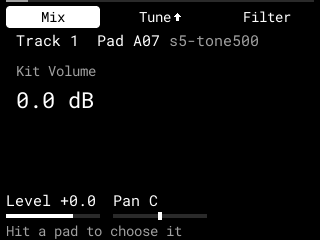
| SHIFT + K2 | On Mix: Kit Volume, the track's level (as the Mixer's K1). On Play: Pad Link, Off or a pad of the track that plays along with this one, at the same velocity and tune (only the hit pad is recorded). On Filt Env: Decay From, the knob's lower half Start, upper half End |
| SAMPLE + pad | Chooses the pad without playing it |
| STOP + B2 | Normalize (as Trim's row below) |
| SHIFT + − / + | Undo and redo the page's own changes, up to 32; a value you keep turning is one step. The bottom line says what ("Undo: Start, pad 2"), and the page shows that value. Loading a project starts afresh |
| SHIFT + B1 | Loop Lock on the pad (below), whatever group shows |
| SHIFT + B2 | Opens the sample browser for the pad |
| SHIFT + B3 | Back to the Mixer when you came from it, else to the menu |
| SHIFT + encoder | On Trim and Loop, zooms the waveform 1× to 32× round the point framed |
| STOP held + − / + | Audition: the sample just before (−) or from (+) the point framed, for Settings > Preview Length (100–2000 ms, 500 to begin with) |
| ERASE + pad | Chooses the pad and erases its sample, as Erase Sample does: stopped only; its WAV stays on the card; SHIFT + − brings it back |
Trim's tools. Past Loop Start, PUSH or + frames four more rows, each run with SHIFT + PUSH and each one step to undo; the bottom line names the one framed:
| Row | |
|---|---|
| Zero Snap | Start, End and the loop's start to the nearest zero crossings |
| Loop Lock | The loop starts at Start, and follows Start until you move Loop Start |
| Normalize | A new WAV beside the original (" 2"), its region's peak at 0 dBFS, put on the pad |
| Erase Sample | Stopped: the pad's sample off, its sound back to the defaults (playing: "Stop first to erase") |
Tested on the MPC: each row on a pad, Normalize undone with SHIFT + −, Audition with STOP + +, and the waveform zoomed to 4×; then Kit Volume and Pad Link (set, heard and saved), SAMPLE + pad, STOP + B2, Audition at a Preview Length of 1000 ms, an erase while the track sounds (only that pad fades), the loop's crossfade and release, and all seven filter types (sound5-test). SHIFT + B1 and ERASE + pad on this page, and STOP + −, are not yet tried on the MPC.
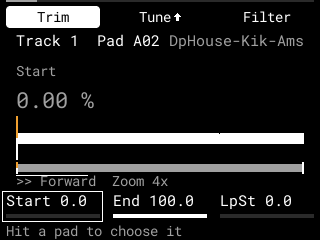
The framed value shows large: white when you changed it, grey at its default. On Trim and Loop the sample's waveform shows between its marks, over a strip of the whole sample with the region, the loop and white marks at the start and end, an orange one at the loop's start, with >> Forward or << Reverse (and Loop) under it. A kit's own values may lie between the steps. Attack and Decay move in 5 ms steps up to 100 ms, then 25 ms, then 100 ms. The sounds are saved with the project.
Reverse has changed. It now plays the region from End back to Start. Before, Reverse played from the sample's end back to its start, with Offset (now Start) counted from the end, so a reversed pad with an Offset in an older project now plays from the sample's end back to that point. An older project's Offset is the pad's Start.
Track 1 starts as the project's own kit plays on stock, and now takes each pad's start and end from stock too (stock's Trim). Whether DFOS reads stock's points exactly as stock plays them is still to check on the MPC. Stock's loop, reverse and Note On aren't taken.
Click-free ends. Where a sound is cut short (a Mono pad hit again, its mute group, MUTE, STOP on a loop, an End before the sample's end), DFOS fades it over Settings > Cut Fades: Off or 1–10 ms, 2 ms to begin with. A Note On pad cut by STOP or its own next hit plays its Release instead.
Sample Chase. With Settings > Sample Chase On (Off to begin with), when playback starts or continues in the middle of a note, the pad starts where it would be by then, faded in over 5 ms, instead of staying silent until its next note.
Every DFOS track also sounds as stock's own sound does: stock plays every sample a little brighter than its WAV (up to 5 dB at the very top), and DFOS's sound has the same.
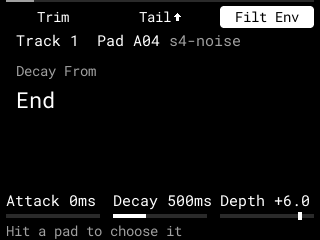
Tested on the MPC: Note On held and released, a take's held length played back, the Tail, the Filt Env's sweep, SHIFT + K2's Decay From, the click-free cuts (Mono, STOP on a loop, an early End) and Sample Chase.
Not yet: warp, a kit's note map, polyphony count and stock's other filter types, warp (stock stretches a warped pad, often a phrase, to the tempo; DFOS plays it as recorded).
Pad Play
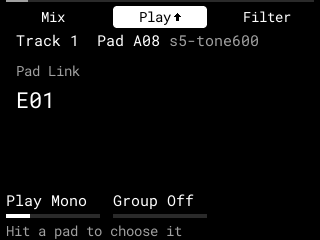
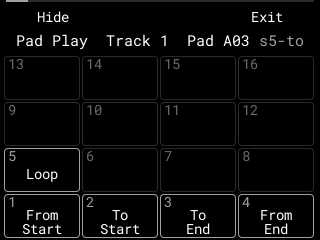
A STOP + pad choice, Pad Play: the pads play parts of the pad you played last on the track, at its sound, heard only (not recorded). A map names them; B1 Hide puts the map away and the pads go on playing parts; the choice again shows it, B3 Exit ends it.
| Pad | Plays |
|---|---|
| PAD 1 | From its Start to the sample's end |
| PAD 2 | From the sample's start up to its Start |
| PAD 3 | From the sample's start up to its End |
| PAD 4 | From its End to the sample's end |
| PAD 5 | Its region as a loop, while held |
On a Note On pad, PAD 1–4 play while held. Tested on the MPC (sound5-test): each part's length, Hide and Exit.
The sample browserContents ↑
SAMPLE SELECT, or SHIFT + B2 on the Sound page, opens DFOS's sample browser. On stock's Sample Mode, Chop and Sample Record pages SAMPLE SELECT opens stock's own browser, for stock's pad. DFOS's lists your favourite folders and samples first, starred, then the places: Expansions (the card's expansion packs, as covers: Expansions), MPC kits (stock's own kits), the card's MPC-Sample folder, stock's Factory sounds, stock's Demo projects, Internal: User (the projects stock saves in its internal storage, read only, during a session), your Tags and the Sample Pool (below). Stock's places are read only: nothing there is changed.
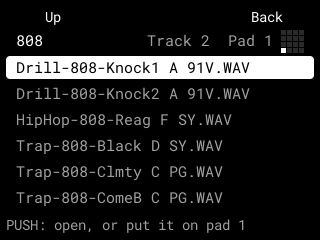
The small map of the pads at the top right shows where a choice goes: the destination pad (laid out as the pads, pad 1 at the bottom left), or all 16 for a kit. The destination is in the bank the pads play, and the browser names it so, Pad B03 (not yet tried on the MPC). In a folder, its folders come first, then projects and WAVs, each with the date it was last changed. A project is marked Kit (its own _[ProjectData] folder isn't listed). A WAV you stay on for a quarter of a second plays once, as a preview, at Settings' Preview Volume; it stops when you leave the browser. The line at the bottom says what PUSH will do, with the chosen WAV's BPM and key before it; after a load, it says what went where. With a WAV chosen, K1 and K2 change its preview (below).
| In the browser | |
|---|---|
| − / +, encoder | Move. With Settings > Fader Scroll, the fader moves too |
| PUSH | Opens a folder, puts the WAV on the destination pad, puts the project's kit on the track, or names a new folder |
| A pad | Plays as usual, and becomes the destination. Hitting the destination plays the preview again |
| SAMPLE + pad | Makes that pad the destination without playing it, and keeps it while the browser is open, so other pads play over the preview without changing it |
| SHIFT + PUSH | On a folder: Home, Favourite or Cancel (below) |
| SHIFT + B1 | Back to the home folder |
| ERASE + PUSH | On a WAV or an empty folder in the card's MPC-Sample: asks, then moves it to MPC-Sample/Trash |
| SHIFT + − | Undoes the last load, move to the Trash or new folder, newest first |
| B1 | Up a folder |
| B3 | Back |
A WAV keeps the pad's other settings and the track's other pads. The samples are saved with the project as paths, so keep them where they are; samples from the project's own folder go with the project when you save it under another name.
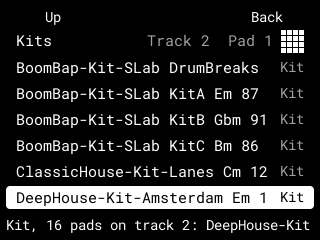
A kit (one of MPC kits, or any stock project, from the card or the demos) replaces the track's pads: the project's drum program, its pads 1–16 (all 128, A01–H16, not yet tried on the MPC), each with its sample, level, pan, tune, mute group, Mono or Poly, velocity sensitivity, amp envelope and (where DFOS has a filter like stock's, Classic included) filter as stock plays them, and its start and end; the Sound page shows them, and you can change them there. The track's mixer settings and notes stay, and playback goes on. SHIFT + − puts the old kit back.
Home folders and favourites
SHIFT + PUSH on a folder asks: B1 Home, B2 Favourite (Unfavourite on a favourite), B3 Cancel.
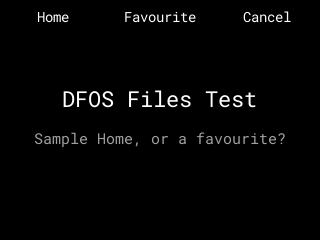
Home makes the folder the browser's Sample Home, or its Kit Home when it holds projects and no WAVs. The browser then opens there: at Sample Home if there is one, else at Kit Home; with neither, where you left it. SHIFT + B1 goes back home, and at Sample Home it goes to Kit Home. Favourite lists the folder first among the places, starred, in the order you marked them, up to 16; one on a card that isn't in shows Unavailable. Homes and favourites are kept in Settings, where the two homes have rows of their own.
Favourite samples and tags
SHIFT + PUSH on a WAV asks: B1 Tag, B2 Favourite (Unfavourite on a favourite), B3 Cancel.
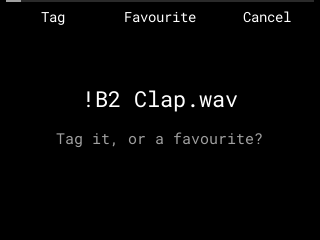
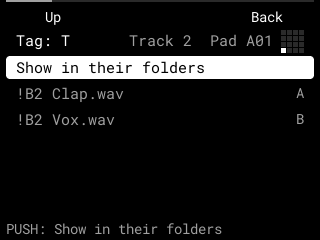
Favourite lists the WAV among the places, starred, after the favourite folders, in the order you marked them (up to 64): it previews, tunes and loads from there like any WAV. Tag lists your tags (those the WAV has starred) and + New Tag, which opens the name entry; PUSH on a tag gives it or takes it off. The Tags place, after Demo projects, lists each tag with its WAVs from wherever they are, as files or in their folders (its first row switches). Up to 16 tags; a tag goes once its last WAV is untagged. A WAV that isn't there any more shows as unavailable. Both are kept in Settings.
The Sample Pool
SHIFT + B2 in the browser (or its last place, Sample Pool) lists every sample on DFOS's tracks' pads by name, marked RAM, then the others you used this session that no pad has now, UNUSED. PUSH puts one on the destination pad, sharing what is in memory; a pad with a sample of its own asks first (B1 Cancel, B3 Replace). ERASE + PUSH takes an UNUSED one out of the list (its file stays). B1 goes back to the places.
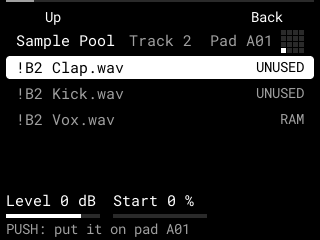
A WAV already in memory, unchanged, is never read twice: every pad and kit using it shares it. The Pool is saved with the project and comes back with it (tested on the MPC, browse2-test).
Tested on the MPC: a favourite WAV and a tag, both loaded from their places and back after a restart, the preview's level and With These taking it, the Pool's UNUSED, ERASE + PUSH and Replace, and a WAV shared instead of read again.
Dates, BPM and key
Each project and WAV shows the date it was last changed, at the right of its row. Settings > Browser Sort puts them by Name (A–Z, to begin with) or by Date (newest first); folders come first either way.
For the chosen WAV the bottom line starts with its BPM and key: from its name ("92bpm", "92 BPM", "Am", "A minor", "F#maj"), else from its ACID chunk, which loop software writes into the WAV. A one-shot shows none, and so does a WAV that says nothing about them.
Every WAV's row shows its BPM and key too, short, before its date: 92 Am, 120, F#m. What the name says shows at once; what is in the file shows a moment later, as DFOS reads it beside the page, so a slow card never holds up the list.
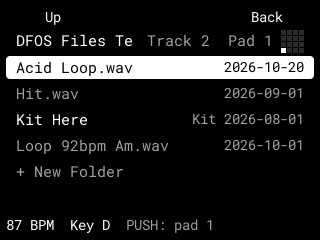
The preview's tune and start
While a WAV is chosen, the bottom row shows two knobs for its preview (the list has a row fewer to make room):
| Knob | |
|---|---|
| K1 | Tune: −24 to +24 semitones (0 to begin with) |
| K2 | Start: 0–95 % into the WAV (Settings' Preview Start to begin with) |
SHIFT + K1 sets the preview's level, −24 to +6 dB (0 dB for each WAV you choose), heard at once. SHIFT + K2 sets where it ends, 5–100 % (silent after it); With These gives the pad that End. A WAV with a cue point shows it on the bottom line ("Cue 25 %"). Tested on the MPC (browse2-test): the end heard half as long at 50 %, With These's End, and the cue. Each knob takes over once it reaches the value shown. When you stop turning, the preview plays again from there. Every WAV you choose starts at 0 and the Preview Start. With no WAV chosen, K1 and K2 are the master and metronome levels, as on the pages without knobs of their own.
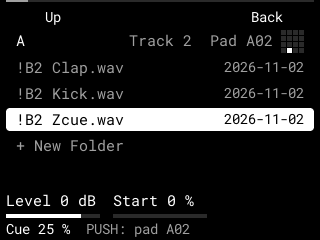
If you turned either, PUSH asks before the WAV goes on the pad: B1 With These puts it on with the pad's Tune, Start and level set to the preview's (one SHIFT + − takes them back), B3 As It Is puts the WAV on alone, the pad's settings as they were.
Settings > Preview Start: where each WAV's preview starts, the sample's start (to begin with) or 5–95 % (not yet tried on the MPC).
Settings > Preview Thru Pad (Off to begin with): the preview plays through the destination pad's tune, filter and amp envelope, so you hear the WAV as that pad would play it, with K1's tune on top of the pad's and from K2's start (not the pad's level, pan or Reverse). With These then adds K1's tune to the pad's own.
Load Advance and Fader Scroll
Settings > Load Advance (Off to begin with): when it is on, after a WAV goes on a pad, the next empty pad of the track becomes the destination, so PUSH after PUSH fills the pads in turn.
Settings > Fader Scroll: Off (to begin with; the fader is then the track's level, as on DFOS's other pages), Slow (a row every four steps of the fader), Medium (a row a step) or Fast (four rows a step). The fader then moves through the browser's list.
New folders and the Trash
Inside the card's MPC-Sample folder, each folder's list ends with + New Folder. PUSH on it opens the name entry: B3 Do It! makes the folder, B1 Cancel doesn't. SHIFT + − takes a new folder back while it is still empty.
ERASE + PUSH on a WAV or an empty folder there asks first: B1 Cancel, B3 Do It!. When a project beside the WAV uses it (or the project whose own folder it is in), the question says so in orange.
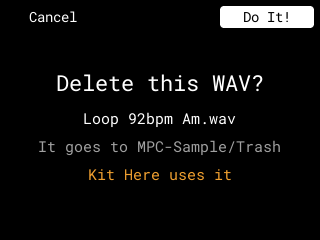
Do It! moves it into the card's MPC-Sample/Trash under its own name ("Name 2" when that is taken; nothing there is replaced), and SHIFT + − brings it back. Nothing is deleted: empty the Trash on the Mac when you are sure. Internal storage, stock's places, anything outside MPC-Sample and MPC-Sample's own folders (Projects, Saves, DFOS, Trash) are never changed; there the bottom line says why ("Only in MPC-Sample on the card", "Only an empty folder").
Not yet: Preview Thru (the main output's effects), the preview's end, stretch and a WAV's cue point, BPM and key detected from the sound, the Sample Pool.
ExpansionsContents ↑
Akai expansion packs go in a folder called Expansions at the top of the SD card, one folder per expansion, as Akai ships them, with its Expansion.xml and cover image. DFOS only reads them: nothing in them is ever changed, moved or deleted.
Open the Expansions page from Expansions, the first place in the sample browser, or set a STOP + pad shortcut to Expansions in Settings. It shows the expansions A–Z, eight to a page in two rows of four, each with its cover and name, the chosen one outlined and named in full at the bottom, and the page number (1/2) at the bottom right. Covers fill in as they are read, so the page never waits on the card. An expansion without a cover shows its initials.
| On the Expansions page | |
|---|---|
| Encoder, − / + | Choose a cover; past the last one, the next page |
| PAD 5–8, PAD 1–4 | Choose a cover in the top row or the bottom row, as the pads are laid out |
| B1 Prev, B2 Next | The page before or after |
| PUSH | Opens the expansion in the sample browser |
| B3 | Back |
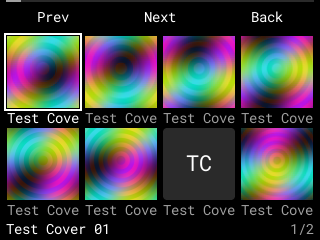
Inside an expansion the browser works as usual, read only: there is no New Folder, and ERASE + PUSH says the expansion is read only. B1 at the expansion's top folder (labelled Covers) and B3 go back to the covers; SHIFT + B1 goes to the expansion's top folder. Its kits (the .xtd files) are listed as kits: the chosen one plays its preview (from the expansion's [Previews] folder), and PUSH puts the kit on the track. In the Wheel theme the covers turn as a carousel. Tested on the MPC (expansions-test): a kit and its preview, an interlaced PNG cover, and the carousel. Packed expansions (.xpn) aren't opened; unpack them on a computer into the Expansions folder.
Name entryContents ↑
DFOS types its own names on a page of its own, like stock's name entry. So far the browser's New Folder uses it.
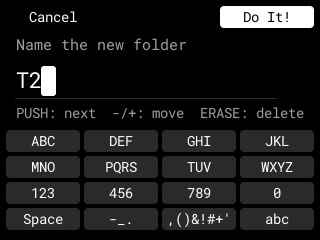
| On the name entry | |
|---|---|
| Encoder | Chooses the letter at the cursor |
| PUSH | Accepts it, and the cursor moves on |
| − / + | Move the cursor |
| ERASE | Takes away the letter at the cursor (at the end, the one before it) |
| A pad | Types the first of its letters; hit it again for the next, as on a phone's keypad. Another pad, PUSH or the encoder accepts it |
| PAD 4 (abc) | Switches the pads between capitals and small letters |
| B3 | Do It! |
| B1 | Cancel |
The page shows the pads' letters as the pads lie: PAD 13–16 ABC, DEF, GHI, JKL; PAD 9–12 MNO, PQRS, TUV, WXYZ; PAD 5–8 123, 456, 789, 0; PAD 1–3 a space, - _ . and , ( ) & ! # + '. A name no folder on the card can have, or one already there, makes no folder, and the browser's bottom line says so.
The MixerContents ↑
Hold STOP and hit PAD 4: the Mixer shows a strip for each track, eight at a time, and on the left the Stock strip: all of stock's sound, its metronome included (and whatever stock's own sequence still plays: the notes track 1 leaves to stock).
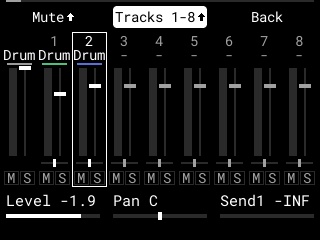
Each strip shows the track's number and kind (Drum, or - for a track not in use; the Stock strip, which has no number, says what stock plays: Drum, its drum program), its level meter with the level's fader beside it, its pan, and M (muted, orange) and S (soloed, white). The meter is green, amber from −6 dB and red at the top for 2 seconds after a clip; it reads full level, so MAIN VOLUME doesn't change it. The chosen strip is outlined, and its level and pan are written at the bottom.
| On the Mixer | |
|---|---|
| − / +, encoder | The strip before or after (before track 1 is the Stock strip) |
| K1 | The chosen strip's level |
| K2 | Its pan (not on stock's sound, which keeps its own) |
| B1 | Mute or unmute it |
| SHIFT + B1 | Solo it, or not. While any strip is soloed, only soloed strips are heard; a muted strip stays muted |
| B2 | Tracks 1–8 or 9–16 (the Stock strip stays on the left) |
| SHIFT + B2 | Clears every mute and solo |
| PUSH | Opens the Sound page on the chosen strip's track, and makes it the track you play; the Sound page's SHIFT + B3 comes back to the Mixer (not yet tried on the MPC) |
| B3 | Back: to the menu when you opened the Mixer from it (not yet tried on the MPC), else to stock's page |
The knobs take over once they reach the value shown. The chosen strip's level, pan and send 1 show as K1–K3 on the bottom row, with their bars (in place of the line at the bottom), B1 and B2 have the SHIFT arrow (solo, clear), and the colour under each track's name is the one chosen on the track grid (send 1 and the SHIFT arrows not yet tried on the MPC). The Mixer opens on the strip of the track you play, and choosing a strip doesn't change that track. As on the other DFOS pages, the pads, PLAY, STOP, SHIFT and MAIN VOLUME work as usual, and the fader sets the level of the track you play, which is not always the strip chosen (the fader); opening it with STOP + PAD 4 stops playback, so press PLAY to play on while you mix. Mutes, solos, levels and pans are saved with the project.
Sends and returns
Each track now has a strip of its own in DFOS's sound: its level and pan move the notes already ringing, smoothly, and the track's pan comes after each pad's own pan. Each track also has four sends, after its level, pan and mute:
| On a track's strip | |
|---|---|
| K3 | Send 1, to return 1, the delay |
| SHIFT + K1 | Send 2, to return 2, the reverb |
| SHIFT + K2, SHIFT + K3 | Sends 3 and 4: kept and saved, but they go nowhere yet |
A send is in dB, -INF (none) to begin with, 0 dB at the top. B2 now goes tracks 1–8, tracks 9–16, then Returns: the two returns' strips, R1 Delay and R2 Reverb, beside the Stock strip, each with its meter and M.
| On a return's strip | Delay (R1) | Reverb (R2) |
|---|---|---|
| K1 | Its level (0 dB to begin with) | Its level |
| K2 | The time: a note value from 1/32 to 1/1 (1/8 dotted to begin with), at the sequence's tempo | The size (60 %) |
| K3 | The feedback: how much each echo comes back (35 %) | The damping: how soon the top fades (50 %) |
| SHIFT + K3 | The feedback's damping (30 %) | |
| B1 | Mute | Mute |
A return has no solo: it is heard whatever is soloed. The sends and the returns are saved with the project.
Headroom. When stock's sound and DFOS's together get loud, DFOS rounds off the peaks instead of letting them clip: nothing changes below −3 dB under full scale, and above it the sound bends gently toward full scale, with no delay. It works only while DFOS has sounded in the last second, so stock's sound alone stays exactly stock's.
Tested on the MPC (mixer-test): K3's send 1, the delay's echo with its time and feedback, the Returns view and the headroom. The reverb and sends 2–4 are not yet tried.
Submixes and routing
B2 goes tracks 1–8, tracks 9–16, Submixes, then Returns (the returns, then Main). A submix sums the tracks sent to it before Main, with its own level (K1), pan (K2), sends (K3, SHIFT + K1–K3), four inserts and a meter; B1 mutes its tracks (SHIFT + B1 solos them).
| On the Mixer | |
|---|---|
| B1 on +SUB | Adds a submix (up to 8) |
| B1 on +RET | Adds return 3, Aux: no effect of its own, what send 3 feeds it through its four inserts; SHIFT + K1 a return's pan |
| ERASE + PUSH on a submix or return | Asks, then on ERASE + PUSH again removes it: its tracks back to Main, its sends gone |
| SHIFT + − / + | Undo and redo adding or removing one |
| A track's Output | On its Channel page, the first row: Main or a submix in use, with the encoder |
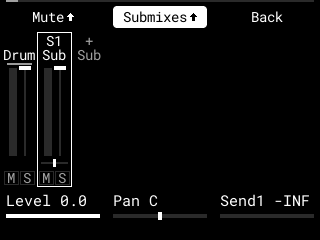
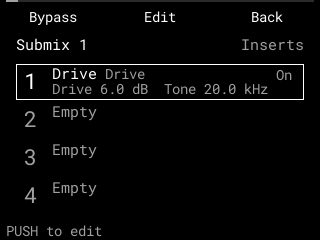
Tested on the MPC (route-test): two tracks routed to a submix through its Drive, its level, pan and mute, return 3 fed by send 3 and panned, the submix removed and its tracks back on Main, undone, saved and loaded back.
Inserts: the Channel page and the effect editor
Each of DFOS's tracks has four insert slots, and so do the submixes, the returns and DFOS's main output. An insert is one of DFOS's own effects on that sound (below). A track's inserts come before its level and pan, so its sends hear them too. The main output's work on all of DFOS's tracks and returns together, before DFOS's master level; stock's own sound joins after them and isn't changed by them.
The Main strip. B2 goes tracks 1–8, tracks 9–16, then Returns, where Main, DFOS's main output, comes after R1 and R2: K1 is DFOS's master level, beside its meter; it has no pan, mute or solo. A track or Main with an effect in its inserts has a small orange dot by its number (not yet tried on the MPC).
The Channel page. Choose a track's strip or Main and press SHIFT + PUSH: the page shows its two slots, each with its effect (or Empty) and On or Bypass.
| On the Channel page | |
|---|---|
| − / + | A track's Output row, then slots 1–4 |
| Encoder | The slot's effect, each at its own starting values; you hear it at once |
| SHIFT + encoder | Moves the effect up or down, past the other slot (not yet tried on the MPC) |
| B1 | Bypass, or on again |
| ERASE + PUSH | Removes the effect |
| PUSH or B2 | The effect editor |
| K1, K2 | DFOS's master level and stock's metronome level, as on pages without knobs (not yet tried on the MPC) |
| B3 | Back to the Mixer |
The effect editor shows the effect's values six at a time, with a curve of what it does: the EQ's and the filter's level over frequency, the compressor's and the gate's level out over level in, the drive's wave.
| In the effect editor | |
|---|---|
| K1–K3, SHIFT + K1–K3 | Six values; each takes over once its knob reaches the value |
| − / + | The next six values (only the EQ has more: twelve) |
| B1, B2 | Slot 1 or 3, slot 2 or 4 |
| Encoder | The slot's effect (SHIFT: moves it) |
| PUSH | Bypass, or on again |
| ERASE + PUSH | Removes the effect |
| B3 | Back to the Channel page |
| Effect | Its values (where it starts) |
|---|---|
| EQ | Four bands: Low, a shelf (100 Hz), Mid 1 and Mid 2, peaks (400 Hz and 2.5 kHz), High, a shelf (8 kHz); each its frequency, gain (±18 dB, 0) and Q |
| Compressor | Threshold (−18 dB), Ratio (4:1), Knee (6 dB), Attack (10 ms), Release (150 ms), Makeup (0 dB), Detector (Peak or RMS: RMS), Mix (100 %; lower for parallel compression) |
| Gate | Threshold (−40 dB), Range (80 dB), Hold (50 ms), Attack (0.5 ms), Release (100 ms) |
| Drive | Drive (6 dB), Tone (a low-pass after it, off at 20 kHz), Mix (100 %), Output (0 dB) |
| Filter | Type (LPF2, LPF4, HPF2, HPF4, BPF2 or BPF4, as on the Sound page: LPF2), Cutoff (1 kHz), Resonance (0 %) |
| Multi-Chorus, Ensemble | Rate, Depth, Mix; the chorus also Delay (12 ms) and Voices (1–4, 3) |
| Flanger, Phaser | Rate, Depth, Feedback, Mix; the flanger's Delay (1 ms), the phaser's Freq (600 Hz) and Stages (2–12) |
| Auto-Pan, Autopan Sync | Rate (Hz, or a note value on DFOS's tempo), Depth, Shape (Sine, Triangle, Square) |
| Pumper | Rate (1/32 to 4 bars, 1/4), Depth (60 %), Release (60 %): the level ducked on each beat of DFOS's tempo |
| Limiter | Input (0 dB), Ceiling (−0.3 dB), Release (100 ms): nothing ever passes the ceiling (1.5 ms later) |
| Transient | Attack and Sustain (±100 %), Output |
| Soft Clip | Drive (0–24 dB), Output |
| Vintage | Model (MPC3000, MPC60, SP1200, SP1200 Ring), Drive, Mix, Output |
| Vinyl, Tape | Vinyl: Wow, Crackle, Hiss, Tone. Tape: Drive, Speed (7.5, 15 or 30 ips), Flutter, Output |
| Sample Delay, Stereo Width | Left and right delay in samples (the right 441); Width 0–200 %, Bass Mono, Output |
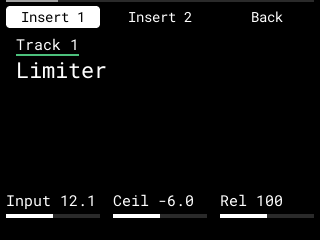
Tested on the MPC (fx2-test): each of the fifteen new effects' sound against DFOS's own model of it, the Limiter never over its ceiling, and four Tape slots within the CPU budget.
A turned value glides to its new place in about 30 ms, so a turn never clicks; changing an effect or bypassing it fades over a moment too. After a track's last note, its inserts let their tail ring out (2 s at most) (the glide, the fades and the tail not yet tried on the MPC).
SHIFT + − / + on either page undo and redo the inserts' changes, up to 32 (turning on and on, or browsing the effects, counts as one step). Loading a project starts a fresh history (not yet tried on the MPC). The inserts are saved with the project.
The CPU guard
Every effect costs the MPC some of its time, so DFOS keeps its own audio work to a budget: 600 µs on average and 1200 µs at worst of each 2.9 ms block. Before an effect goes in a slot, or comes on from bypass, or an undo brings one back, and before a send first feeds a return nothing else feeds, DFOS works out whether it still fits, from what it measures and from an estimate of every effect and return in use. If it doesn't, nothing changes and CPU FULL shows; on the Channel page and in the effect editor the encoder skips the effects that wouldn't fit. Removing or bypassing an effect, or choosing a lighter one, always works. The estimates come from the Mac and are still to be checked on the MPC. The Meters page shows DFOS's audio work. Loading a project isn't checked: its inserts and sends come in as saved. Tested on the MPC (polish-test): the refusals, CPU FULL, and DFOS's own work under the budget.
Flatten, Resample and Save a sampleContents ↑
These three make a new WAV on the card, always inside its MPC-Sample folder, and never over a file that is there: a name taken gets " 2", " 3" and so on. Each works on the track you play and the pad you played last, and opens the save page:
| On the save page | |
|---|---|
| − / +, encoder | The folder: MPC-Sample's folders and those one level in, the ones you used last first, then the job's own (Flatten, Resample or Samples, made the first time), then the rest by name |
| PUSH on New Folder | Names a new folder on the name entry and makes it at MPC-Sample's top (not yet tried on the MPC) |
| B2 Name | The WAV's name on the name entry (up to 20 letters), starting from the one shown (not yet tried on the MPC) |
| K1 | For Resample: its length, 1, 2, 4, 8, 16 or 32 bars |
| B3 Do It! | Starts it |
| B1 | Cancel: back to the page you came from. Stop while a Resample waits or records; Back once it is done |
| SHIFT + − | Undoes the last Flatten or Resample put on a pad: the pad's old sample and sound come back |
A job goes on in the background if you leave the page, one at a time; open the page again to see how it went ("On pad A06: Resample/Resample 2.wav"). MPC-Sample's own Trash, Backups, DFOS and Saves folders aren't offered.
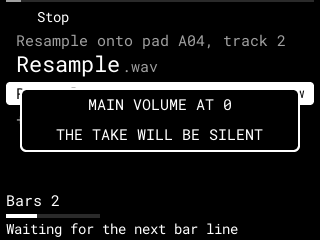
Resample records what you hear. Press SHIFT + PAD 11 (on any page but stock's Sample Mode, Chop and Sample Record, where it stays stock's own), or a STOP + pad set to Resample. Choose the bars on K1 and press B3 Do It!, then PLAY (or, while playing, it waits for the next bar). From the next bar line it records the whole output, stock's sound (its metronome too) and DFOS's with its inserts and returns, at full level, so MAIN VOLUME doesn't change it, for the bars you chose, up to 64 seconds. STOP before the end keeps what it has recorded; B1 Stop throws it away (not yet tried on the MPC). The WAV (24-bit stereo) goes to MPC-Sample/Resample and onto the pad the page names: the next empty pad of the track to begin with; hit a pad before Do It! to choose another (tested on the MPC, render-test). Resample takes the main output as it leaves for the speakers, so with MAIN VOLUME at 0 it records silence: turn it up first. If it is at 0 when you press Do It!, the page says so for 1.5 s:
Flatten turns a pad's own sound into a new sample: give a STOP + pad the Flatten shortcut in Settings. It plays the pad once at full velocity, with its level, pan, tune, start and end, Reverse, loop, envelope and filter, then through the track's two inserts (those switched on), plus its tail until it fades out (10 seconds at most), and puts the result on the same pad with the pad's sound settings back at their plain values (its mute group, Mono or Poly and Velocity kept). The track's level, pan and sends still act on it as before, and aren't in the WAV. The inserts are in the WAV and stay on the track, so the flattened pad played on that track goes through them a second time: bypass them, or play the pad on another track, to hear it as it was. The WAV (24-bit) goes to MPC-Sample/Flatten, named after the pad's sample ("Kick Flat").
Save a sample writes the pad's region, from its Start to its End, as a WAV of its own format to MPC-Sample/Samples: give a STOP + pad the Save Sample shortcut. Nothing changes on the pad.
Export Stems
A STOP + pad (or SHIFT + pad) choice, Export Stems, opens the save page's Export Stems view: the sequence's bars (the song's while Song (DFOS) plays, the arrangement's from the playhead while it is on, shown as "Arrange"), into MPC-Sample/Saves/Exports/ under the project's name (B2 Name changes it). B3 Do It!, then PLAY from the start: each track's own sound after its strip (its inserts, level, pan and mute; not the returns or Main's inserts) and stock's, as 24-bit stereo WAVs, "Track 01.wav" … "Track 16.wav" and "Stock.wav", only those that sound, all as long so they line up. B1 Stop cancels; STOP ends it early, keeping what it has. Stock's stem, like Resample, is taken after MAIN VOLUME: at 0 it is silent, and Do It! then says MAIN VOLUME AT 0 / THE TAKE WILL BE SILENT.
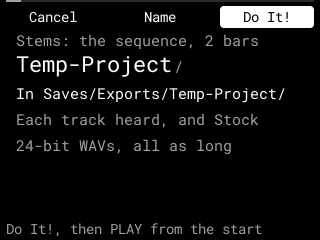
Tested on the MPC (stems-test): three tracks and Stock exported over 2 bars, each stem its track's sound alone, Stock's clicks from beat 0, and the stems added up the mix as recorded.
Shortcuts, the menu and SettingsContents ↑
Hold STOP and hit a pad for a shortcut. STOP still stops playback, as always; the pad never reaches stock. These are the shortcuts until you change them in Settings:
| Pad | Shortcut |
|---|---|
| 1 | DFOS's menu |
| 2 | Sequence Mode (as SEQ) |
| 3 | Sample Mode (as SAMPLE) |
| 4 | The Mixer |
| 5 | DFOS's Song page (stock's stays on SHIFT + PAD 12 and the menu's Song tile) |
| 6 | The Grid (as SHIFT + SEQ) |
| 7 | The metronome: off, on, record only (as SHIFT + TAP TEMPO) |
| 8 | Note Repeat on or off (as NOTE REPEAT) |
| 10 | The Meters page |
| 11 | The Loudness page |
The stock functions (2, 3, 6, 7 and 8) work as their own buttons do, once you let go of STOP (and SHIFT). Pads 9 and 12–16 have no shortcut yet: with STOP held they play as usual.
The menu (STOP + PAD 1) shows six pages as tiles. − / + or the encoder choose one and PUSH opens it. Sound opens the Sound page, Mixer the Mixer, Projects stock's Project menu (as SHIFT + PAD 16) and Settings the Settings page. Play goes to stock's Sequence Mode (as SEQ: a way home from anywhere) and Song to stock's Song page (as SHIFT + PAD 12). B1 is Projects, B2 Settings and B3 closes the menu. It opens on the tile you chose last.
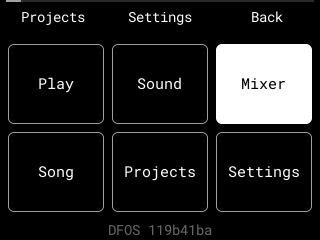
The line at the bottom names the DFOS build you are running.
Other ways into the menu: SHIFT + B3 on any page but stock's Chop Mode (where SHIFT + B3 is stock's Merge); SHIFT + B3 on the menu closes it. SEQ again on Sequence Mode, or SAMPLE again on Sample Mode, opens it when you let go, if you pressed nothing else meanwhile: stock does nothing with those presses, and they still reach it, so SEQ + pad and SEQ + SAMPLE work as before.
Settings lists each pad's STOP + pad shortcut, then the rows below. − / + choose the row and the encoder changes it; a shortcut goes through Menu, Mixer, Meters, Loudness, Settings, Sequence Mode, Sample Mode, Step Edit (the Grid), Metronome, Note Repeat, Undo, Redo, Sound, Song (stock's Song page), Song (DFOS) (DFOS's Song page), Flatten, Resample, Save Sample (above), Chop (stock's Chop Mode), Expansions, Sequences, Tuner and None (Resample and Chop not yet tried on the MPC). A value you changed shows white, a default grey. B1 puts the row back to its default, B2 goes back to the menu and B3 closes. One pad always keeps the menu or Settings, so you can always get back here.
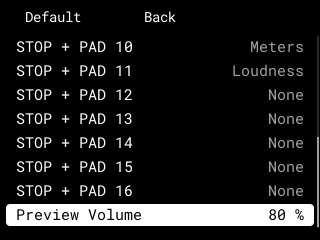
| Row | |
|---|---|
| Preview Volume | The sample browser's preview level, 0–100 % in steps of 5 (80 % to begin with) |
| Load Advance | Off (to begin with) or On: after a WAV goes on a pad, the next empty pad becomes the browser's destination |
| Sample Home, Kit Home | The folders the browser opens on (None to begin with). Set them in the browser with SHIFT + PUSH; here the encoder chooses None, a favourite folder or the home already set |
| Browser Sort | Name (A–Z, to begin with) or Date (newest first) |
| Fader Scroll | Off (to begin with), Slow, Medium or Fast: the fader moving through the browser's list |
| Brightness | The screen's backlight, 1–6 |
| Full Level at Start | On (to begin with) or Off: whether a session starts with Full Level on |
| Pad Step Order | Up (to begin with) or Down: which pad reaches which of the Grid's steps (The Grid) |
| Count-In | Off (to begin with) or On: stock's count-in turned on before your first recording (Count-In) |
| Shortcut Map | Off (to begin with), 0.5 s, 1 s or 2 s (below) |
| SHIFT Twice | None (to begin with) or a shortcut (below) |
| SHIFT + PAD 1–16 | Stock (to begin with: the function printed above the pad) or a shortcut (below) |
| Preview Start | Sample Start (to begin with) or 5–95 %, in steps of 5: where the browser's preview starts (The sample browser) |
| Preview Thru Pad | Off (to begin with) or On: the preview through the destination pad's tune, filter and envelope |
| Cut Fades | Off, or 1–10 ms (2 ms to begin with): the fade where a sound is cut short (The Sound page) |
| Sample Chase | Off (to begin with) or On: notes already under way when playback starts sound from where they would be |
| Preview Length | 100–2000 ms (500 to begin with): how long the Sound page's Audition plays |
| Startup Text | Empty (to begin with: the DFOS logo) or your own text on the startup screen (The startup screen); PUSH or the encoder opens the name entry |
| Theme | DFOS (to begin with), Stage, Mono, Daylight, Colour, Navigator or Wheel: the look of DFOS's pages (Themes) |
| Button Hints | Never (to begin with), Once or Always: B1–B3 named over a page as it opens (Themes) |
Preview Start is not yet tried on the MPC. Pad Step Order, Count-In, SHIFT Twice and SHIFT + PAD 1–16 were tried on the MPC from the Settings file, not yet from this page.
Brightness changes the screen at once. Until you set it, DFOS leaves the backlight as it found it, and the row shows that level in grey; B1 goes back to that. When the session ends, however it ends, the level the MPC had before DFOS comes back, and plain stock keeps it.
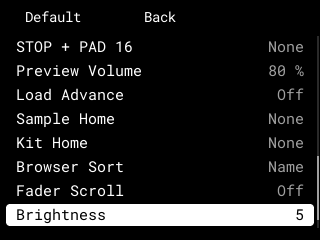
Undo and Redo have no pad until you give them one here (pads 12–16 are free). Undo takes back the last change to DFOS's tracks: a step on the Grid, a cleared step, ERASE + pad, a length or a Q, or a whole take, up to eight back. Redo puts back what you undid, until you change something again. A notice says which track changed ("Undone on track 2"), or that there is nothing to undo. They don't undo stock's own edits (its sample pages); stock has its own undo. Loading a project starts a fresh history.
SHIFT + − / + (SHIFT + − on the Grid tried on the MPC; the rest not yet) are Undo and Redo too, on every DFOS page, with UNDO, REDO, NOTHING TO UNDO or NOTHING TO REDO over the page (these notices no longer name the track). In the sample browser SHIFT + − keeps its own job (undoing the last load); the Sound page, the Channel page and the effect editor, and the save page have their own undo too. On stock's pages SHIFT + − / + stay stock's.
SHIFT twice and SHIFT + pad
Settings > SHIFT Twice: give it a shortcut, and two presses of SHIFT within 0.3 seconds run it, when you let go the second time (pressing anything else between gives it up; never with STOP held, so never while leaving with SHIFT + STOP). Both presses still reach stock, which does nothing with them.
Settings > SHIFT + PAD 1–16: each pad is Stock to begin with, the function printed above it. Give one a shortcut, and SHIFT + that pad runs the shortcut instead; stock doesn't get the press. A stock function (Sequence Mode, Song…) is played to stock once you let go of SHIFT. SHIFT + PAD 1 stays Full Level unless you give it a shortcut. SHIFT + PAD 11, stock's Resample, is DFOS's own Resample while it is Stock (on any page but stock's Sample Mode, Chop and Sample Record), and its row then reads Resample (that row not yet tried on the MPC).
The shortcut map
Settings > Shortcut Map: at 0.5, 1 or 2 seconds, holding STOP that long, with nothing else held, shows the 16 STOP + pad shortcuts as a 4 × 4 map, laid out like the pads (PAD 13 at the top left, PAD 1 at the bottom left). Hit a pad for its shortcut, as usual; let go of STOP to close the map, back to the page it covered. Pressing anything else (or turning the encoder) before the time is up keeps it away, and SHIFT closes it, so it never shows while you leave with SHIFT + STOP (these two, and going back to the page it covered, not yet tried on the MPC).
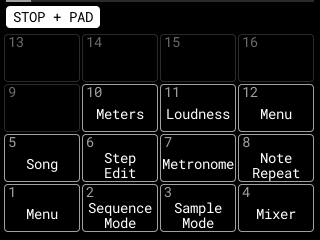
SHIFT held alone that long shows the same map for the SHIFT + pads (each pad's choice, or its printed function), its title saying which.
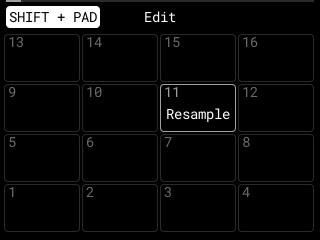
Editing on the map. B2 Edit on the map, then hit a pad: its choices are listed; the encoder or − / + choose, PUSH sets it, saved at once as Settings' rows are. B2 again ends editing, B3 closes the map. A change that would leave no pad on the menu or Settings is refused.
K1 and K2 on pages without knobs
On the menu, Settings, Meters, Loudness, the sample browser (while no WAV is chosen) and the name entry, which don't use the knobs themselves:
| Knob | |
|---|---|
| K1 | DFOS's master level: all of DFOS's tracks together (not stock's own sound), up to +6 dB, 0 dB to begin with, saved with the project |
| K2 | Stock's metronome level, as SHIFT + K3 sets it on Sequence Mode: DFOS plays it to stock, only while stock is on its Sequence Mode |
Each takes over once it reaches the value (tested on the MPC on the menu, nav-test). K3 sets stock's tempo (Tempo).
Themes
Settings > Theme changes the look of DFOS's own pages at once (stock's screens stay stock's): DFOS, Stage (larger text, white on black, the chosen row in yellow, five rows a page), Mono (one amber colour on near-black), Daylight (dark on off-white, for bright rooms), Colour (each part of DFOS in its own hue: the Mixer green, the Sound page cyan, the Grid, sequences, Song and save red, the browser violet, the effects amber, the rest grey; a tinted top band, the chosen tab and row in it, and a stripe in the played track's colour) Navigator (a line of breadcrumbs, the pages you came through, under the top row; Back names where it goes, "< Menu", in orange; dots under a button that cycles, the one shown orange) or Wheel (lists as a wheel: the chosen row large in the middle between two rules, the rows either side fading; the menu a wheel too, and Expansions a carousel of covers). B1 goes back to DFOS.
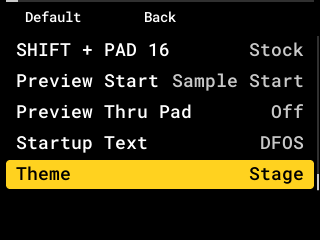
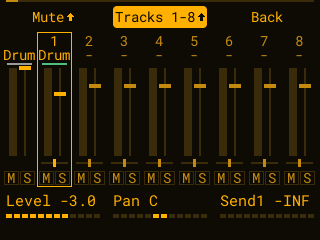
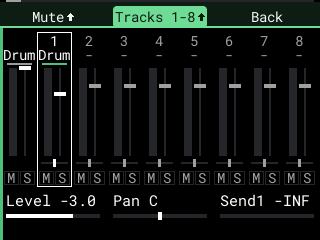
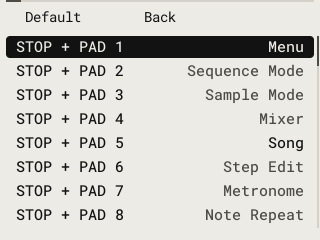
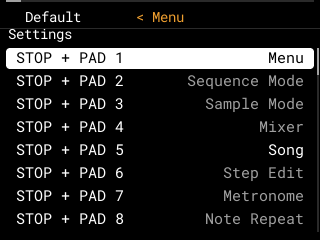
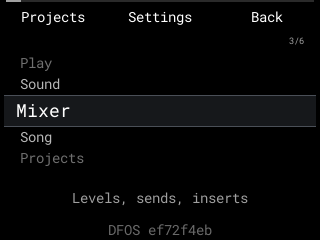
Tested on the MPC: all seven themes, each saved and shown within 250 ms (Navigator's Back and dots and Wheel's lists and menu in theme-test), Button Hints Always, and the SHIFT + pad map and editing a pad on the map. Stage shows each knob as a small name over a large value. Settings > Button Hints: Always, Once (the first time each page opens after a project loads) or Never (to begin with). A strip over the page names B1–B3 (and their SHIFT functions) as it opens, for 2 s, then fades.
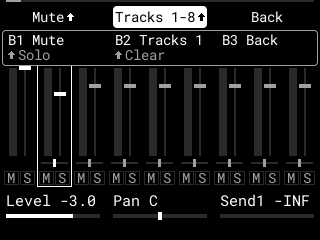
Settings are saved on the card at once, in MPC-Sample/DFOS/Settings.json, and come back at the next DFOS session; they're never written to the MPC's internal storage.
The TunerContents ↑
A STOP + pad choice, Tuner: the note and octave of stock's input in large type, its frequency, and its cents on a needle, white within ±3 cents. K1 chooses Stereo, Left or Right; K2 is the metronome's level; B3 goes back. With nothing at the input, the note shows a dash and the needle rests in the middle. Its page is shown on the MPC; its readings are not yet tried on the MPC.
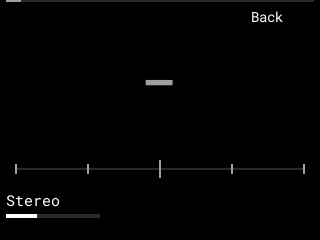
The Meters pageContents ↑
Hold STOP and hit PAD 10: the Meters page shows over stock's screen. It shows how busy and how full the MPC is, updated every second.
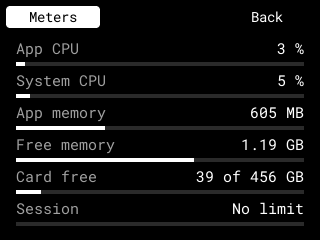
| Row | What it shows |
|---|---|
| App CPU | How much of the MPC's four cores stock's app uses |
| DFOS audio | DFOS's own sound work, as a share of each 2.9 ms block: on average, then at worst ("8 %, top 21 %"). Its bar turns orange past the CPU guard's budget (not yet tried on the MPC; not in the screenshot) |
| System CPU | How busy the whole MPC is |
| App memory | The memory stock's app uses |
| Free memory | The memory still free |
| Card free | Free space on the SD card, and its size |
| Session | No limit: a session lasts until you hold SHIFT + STOP |
A bar turns orange when the CPU reaches 80 %, when less than a tenth of the memory is free, or less than a twentieth of the card.
While the page shows, stock goes on running underneath. The pads, PLAY, STOP, SHIFT and MAIN VOLUME work as usual, and the fader sets the level of the track you play (the fader). B1–B3, K1–K3, the encoder and − / + belong to the page, so stock's page underneath stays as it was; on this page only B3 (Back) does something so far, and K1 and K2 (master and metronome levels: K1 and K2 on pages without knobs).
| To close it | |
|---|---|
| B3 | Back |
| STOP + PAD 10 | Again |
| Any other button | Closes the page and does its own job, so SEQ opens Sequence Mode |
Opening the page with STOP + PAD 10 stops playback, as STOP always does. Press PLAY to play on while the page shows. Holding SHIFT + STOP for 3 seconds still leaves DFOS.
The Loudness pageContents ↑
Hold STOP and hit PAD 11: the Loudness page shows how loud the MPC's main mix is, after the broadcast standard (EBU R 128), five times a second. It is measured at full level, so MAIN VOLUME doesn't change the figures, except at 0, where the main output carries nothing to measure: the last row then reads MAIN VOLUME at 0 / silent in orange in place of PLR.
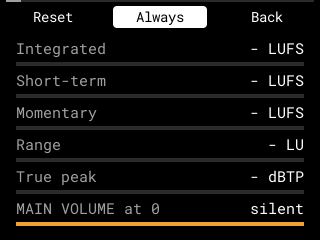
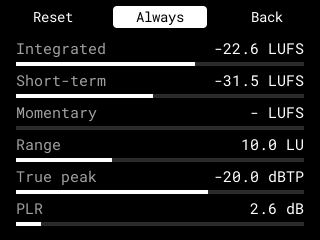
| Row | What it shows |
|---|---|
| Integrated | The loudness of everything since the last reset, quiet parts left out (LUFS) |
| Short-term | The last 3 seconds |
| Momentary | The last 0.4 seconds |
| Range | How much the loudness varies (LU) |
| True peak | The highest level, between the samples too (dBTP); the bar turns orange above −1 dBTP |
| PLR | True peak less integrated loudness: how much room the peaks have (dB) |
B1 starts measuring again. B2 chooses where it measures: Always (on every page) or Shown (only while this page is open). B3 closes the page, and so do STOP + PAD 11 and any button that isn't the page's own. As on the Meters page, the pads, PLAY, STOP, SHIFT and MAIN VOLUME work as usual, and the fader sets the level of the track you play.
The USB screen streamContents ↑
With the MPC connected to the Mac by USB, open http://192.168.155.1:8320/ in a browser, or add it to OBS as a Browser source. The page, "DFOS screen", shows the MPC's screen as it is, stock's pages and DFOS's, scaled to fit with its pixels kept sharp, at up to 30 frames a second. It is view only: nothing done on the page reaches the MPC.
Up to four viewers at once; a fifth is turned away until one leaves (a page that stops asking for 3 seconds has left). http://192.168.155.1:8320/frame gives one frame for your own tools: 320 × 240 pixels, rows from the top, 4 bytes a pixel (blue, green, red, unused).
The stream is only on the USB link, never on another network, and it runs only when nothing else wants the MPC's processor, so stock's sound and DFOS's always come first. It starts with the session and stops when the session ends.
Not tried yet: the stream in a session where Start SSH was cancelled (every test ran with SSH on).
About the screenshotsContents ↑
The screenshots are taken from the MPC's own screen, at its real size of 320 × 240, by a read-only screen reader during test runs. Pages are shown with an empty project until DFOS's own functions are built.