Turn it on!
16 LEVELS›PAD
16 LEVELS turns it on and offThe selected pad then plays on all sixteen padsIn Velocity, the first mode, pad 1 is the softest and pad 16 the hardest
Quick start
16 Levels makes the selected pad play on all sixteen pads. What the sixteen pads change is its mode, from Velocity to Chords. The full details are in the manual. All quick start guides
16 LEVELS turns it on and offThe selected pad then plays on all sixteen padsIn Velocity, the first mode, pad 1 is the softest and pad 16 the hardest
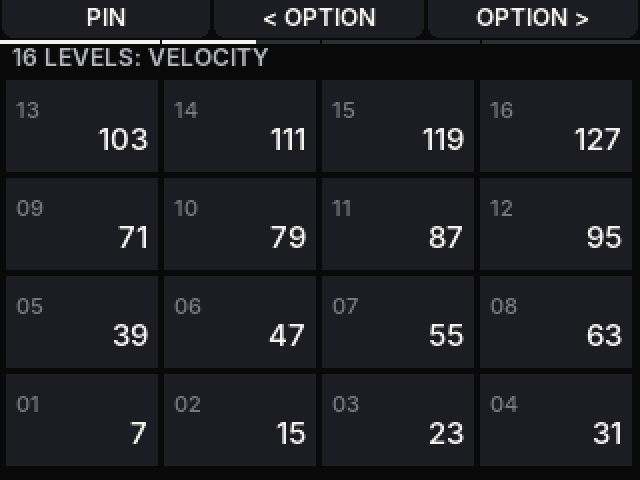
Hold 16 LEVELS for a moment and a map shows what each pad playsLet go and it goes awayB1 pins it so that it stays, and B1 again, or a tap of 16 LEVELS, lets it go
With the map up, B2 and B3 go to the mode before and after, round and round: Velocity, Scale, Chance, Ratchet, Attack, Decay, Slice, Filter, Articulation, Layer and ChordsChords has its own guide
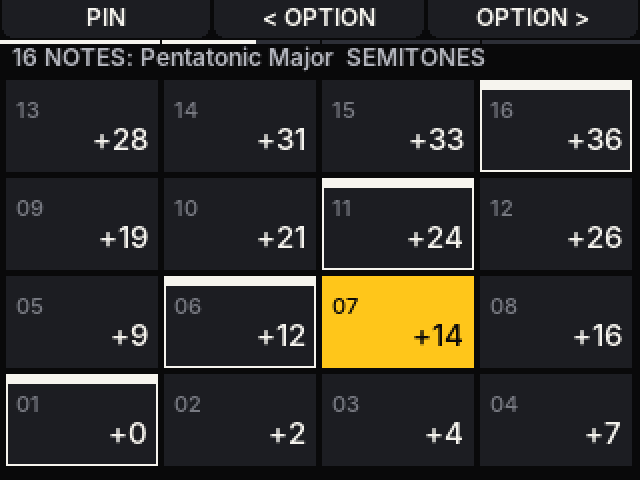
In Scale the pads play the selected pad at the notes of a scale, pad 1 at the bottom left, the roots framedWith 16 LEVELS held, the encoder moves every pad up or down an octave, and − and + a semitone, up to two octaves
Hold 16 LEVELS and press a pad: that pad plays the sound at its original pitch, and each pad from it is a semitone higher or lower, below as well as above.
Probability (Chance on the map) is the chance a recorded hit plays, 6 to 100% up the padsRatchet gives pairs of pads 1 to 8 hits in the note's sixteenthAttack and Decay lengthen the hit's own envelope up the padsA note recorded in these modes keeps it
Slice plays the sample's chop slices, one to a padFilter sets the cutoff while the pad is held and needs the pad's filter onArticulation gives plain, flam, drag and roll by rowLayer sets how loud the pad's second sample is
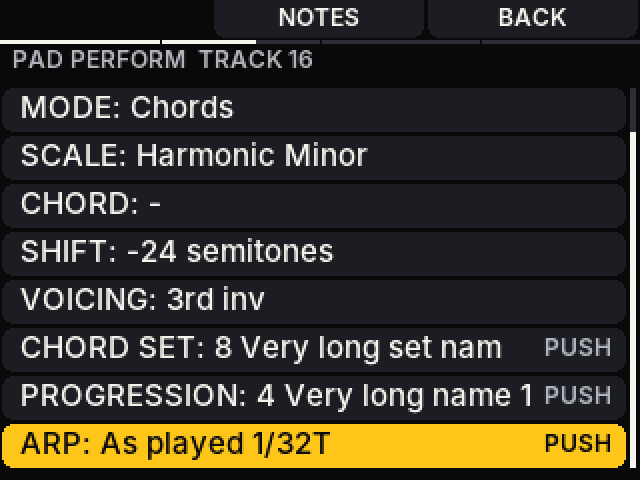
SHIFT and 16 LEVELS open Pad Perform Setup, and again close itIt lists this track's state: on or off, mode, scale, chord, shift in semitones, voicing, chord set, progression and arpThe encoder chooses a row, − and + change it, and B3 goes back
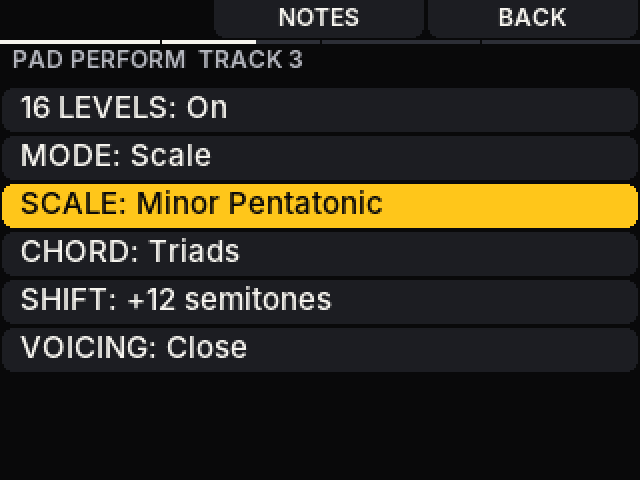
The Scale row is where a scale is chosen: − and + change itChanging it while another mode is on switches to ScaleThe map's B2 and B3 do not step through scales
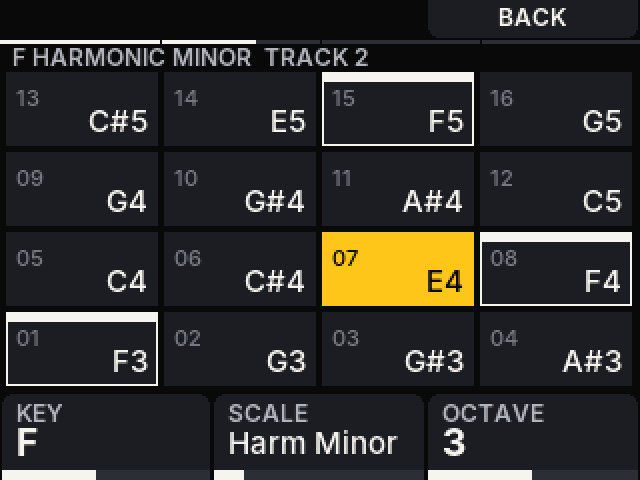
On Pad Perform Setup, B2 opens Pad Notes: the scale as the notes the pads playK1 sets the keyK2 the scaleK3 the octaveLooking changes nothing, and a change turns the mode to ScaleB3 goes back
Every track keeps its own 16 Levels state, scale includedA track left on in a scale finds it so againA track that never had it starts with it off
On the Track page, STOP and pad 12, choose the Pad Perform rowPUSH turns on Scale mode, in the scale last chosen on the Scale row, and PUSH again turns it off