Start DFOS!
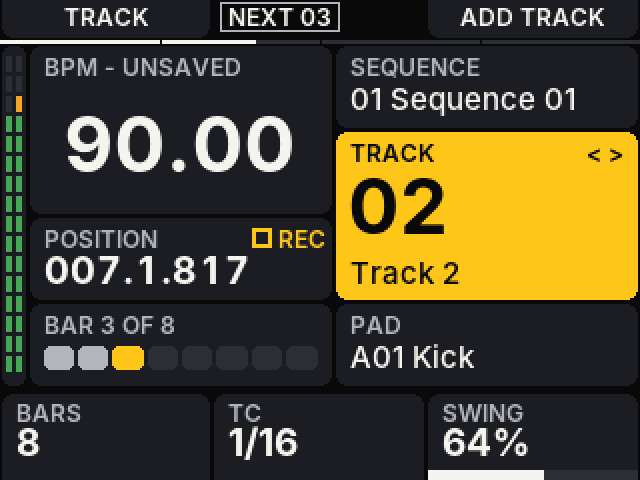
DFOS runs from the SD card. The logo shows while it loads, then the Main screen opens on an empty project, ready for your first beat.
Quick start
Controls are named as printed on the MPC Sample. A plus sign means hold the first and press the second. The full details are in the manual. All quick start guides
DFOS runs from the SD card. The logo shows while it loads, then the Main screen opens on an empty project, ready for your first beat.
The three tabs on top sit over B1 B2 B3The three values at the bottom sit over K1 K2 K3The accent colour always marks what is selected
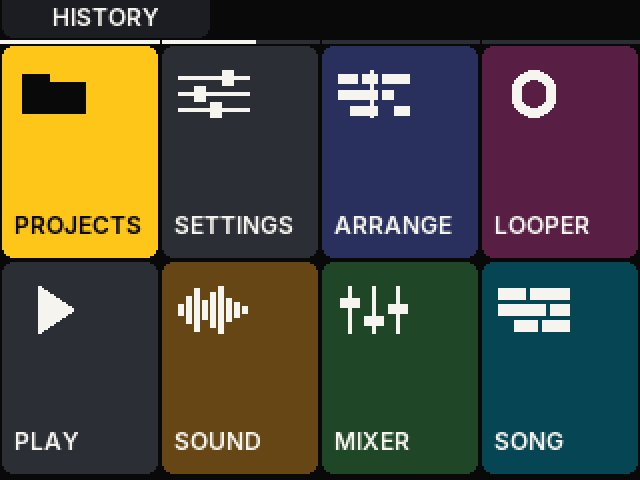
Press SHIFT and B3. The Menu has Play, Sound, Mixer, Song, Arrange, Looper, Projects and Settings.
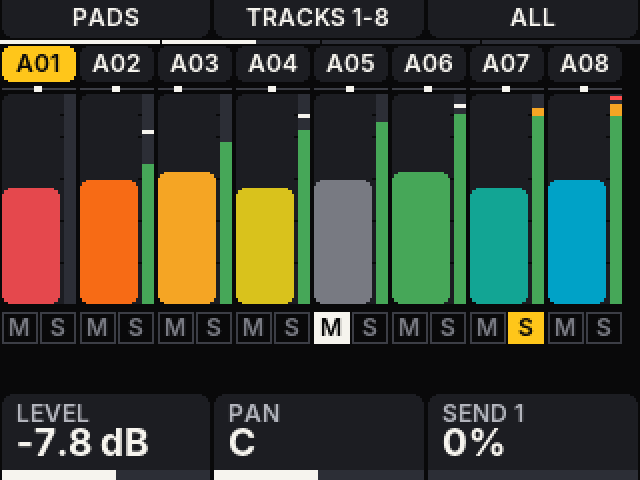
STOP and a pad take you straight to a page: pad 1 Menu, 2 Main, 3 Sample, 4 Mixer, 5 Song, 6 Grid, 7 Settings. You can change them in Settings.
SHIFT and − undoSHIFT and + redoEvery edit to the project can be undone, so try things
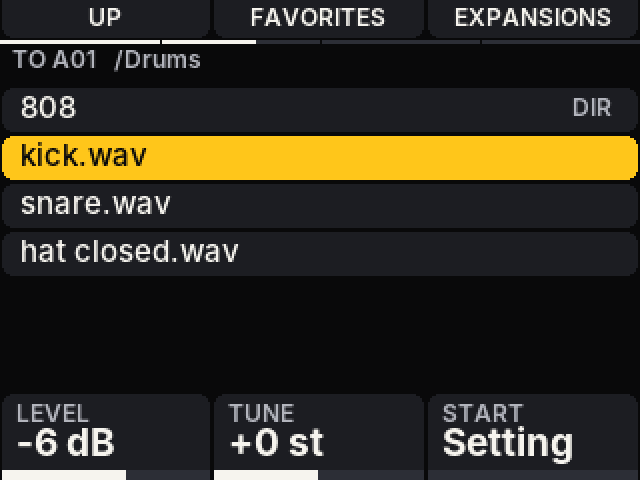
Turn the encoder to a sound file (WAV, FLAC or MP3)It plays a moment after you reach itPUSH loads it onto the pad named at the top
The pads play the selected trackPAD BANK goes to the next bank, A to HPAD BANK and pad 1 to 8 jump straight to a bank
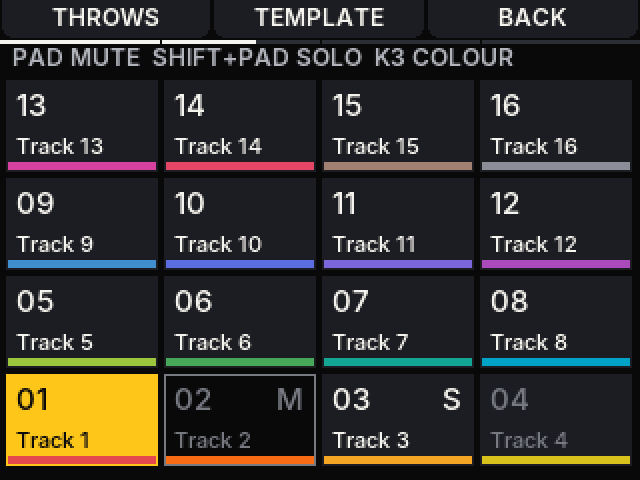
Hold SAMPLE for a moment: the sixteen tracks show in their colours. A pad selects its track; a free tile makes a new one.
On the Main screen press SEQ RECORD, then PLAY, play the pads, and press STOP. ERASE and a pad erases that pad's notes.
Hold TAP TEMPO and turn the encoder: 1 BPM a step, or 0.1 with SHIFT. The tempo stays on screen while you hold.
On the Main screen K1 is Bars, K2 is TC (timing correct, 1/4 to 1/64 with triplets, or Off) and K3 is Swing.
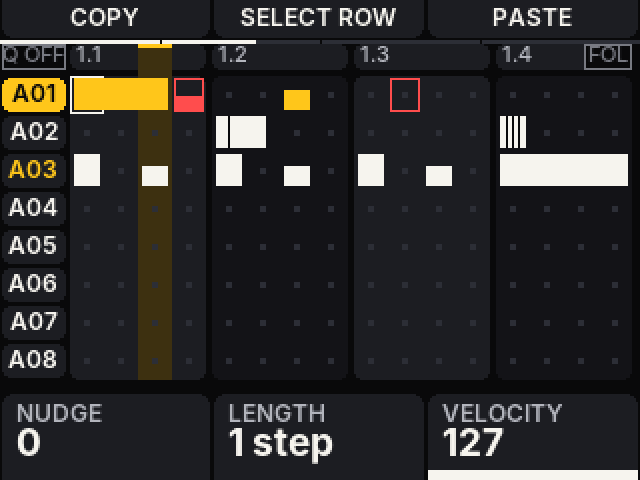
With the sequence row in focus, PUSH on the Main screen opens the Grid, where the notes are edited. SEQ goes back.
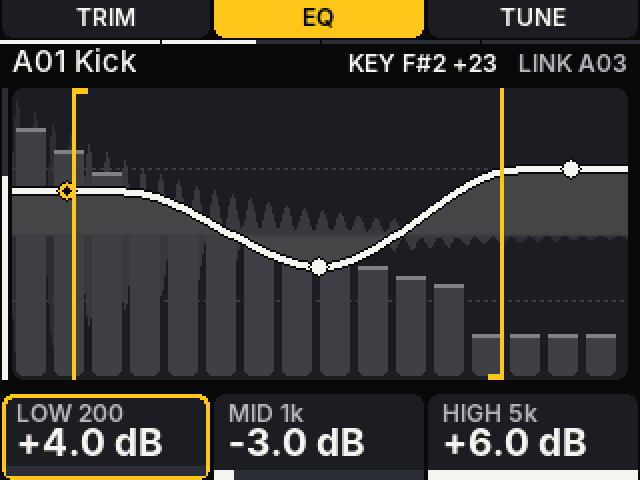
SAMPLE opens the selected pad's soundB1 B2 and B3 each step through a group of pages; hold one to list themK1 to K3 set the values
Start, end and loopLevel and panEnvelopesTuning and warpPlay modeA filter and a three-band EQUp to eight layersMovement, chance and small effects
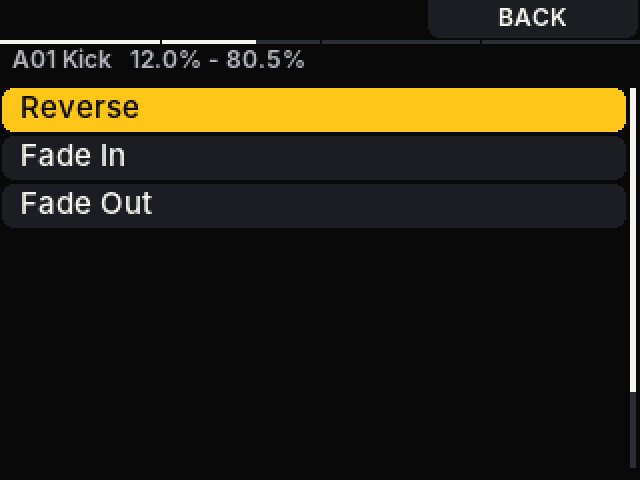
On Sample Mode, SHIFT and PUSH open the jobs: reverse, fades, tempo and key readings (estimates)Split into Stems is experimental: Spleeter is faster, HT-Demucs is slower and better
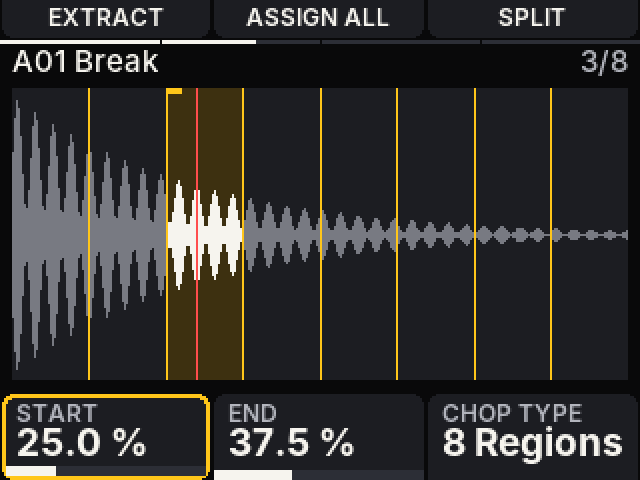
CHOP opens the selected pad's sample. K3 chooses how to cut: Manual, Threshold, or 4, 8, 16 or 32 equal regions.
SHIFT and B1 open To Pads: pads 1 to 8 choose bank A to H. PUSH puts the slices on an empty track; with SHIFT it adds notes that play them in order.
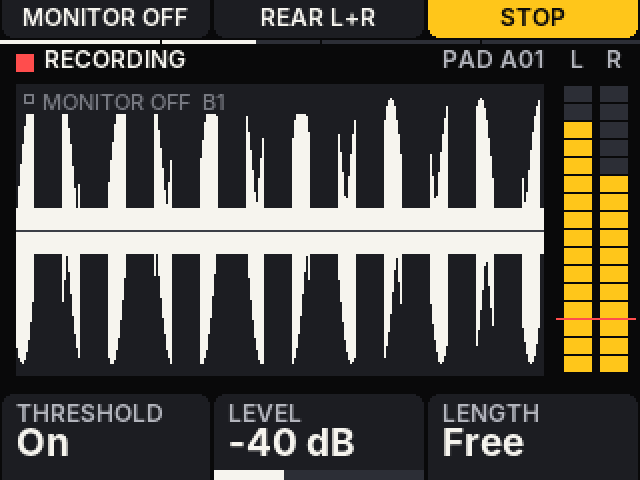
B2 chooses the input: rear, USB, Resample (DFOS's own mix) or the microphone. Set a level, arm, and tap the pad the sample should go to.
Input Recall: the last 25 seconds of input go onto an empty pad, from any page. Turn it on in Settings first; it is off at first.
Hold NOTE REPEAT and a pad: it repeats at the Q rate. With NOTE REPEAT held, B1 B2 B3 set 1/8, 1/16 and 1/32.
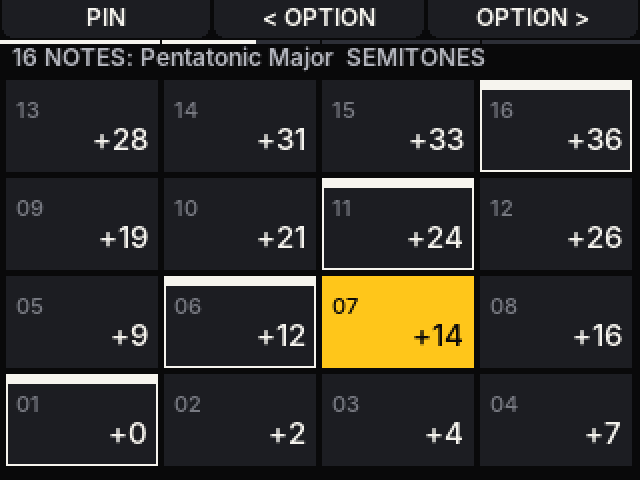
Spreads the selected pad over the sixteen pads at sixteen velocities. SHIFT and 16 LEVELS open Pad Perform Setup, where the mode and the scale are chosen.
MUTE once: the pads mute padsTwice quickly: the pads mute tracksHeld with a pad: muted only while you holdSHIFT and MUTE unmute every pad
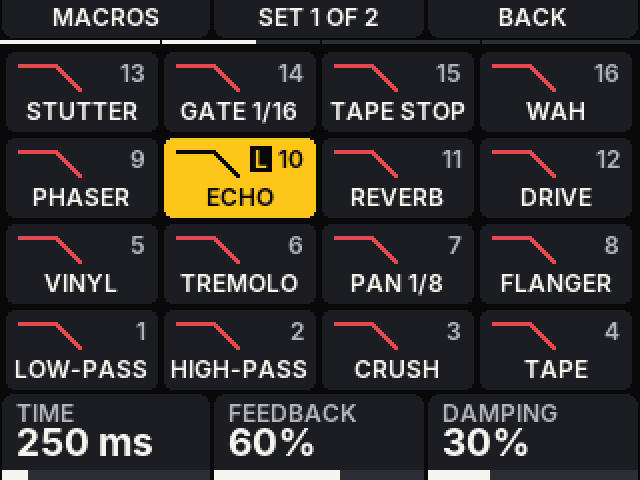
Sixteen ready-made effects on the whole mix, in two sets (B2)Hold a pad to hear its effect, or SHIFT and a pad to latch itK1 to K3 shape it, and the fader sets its level
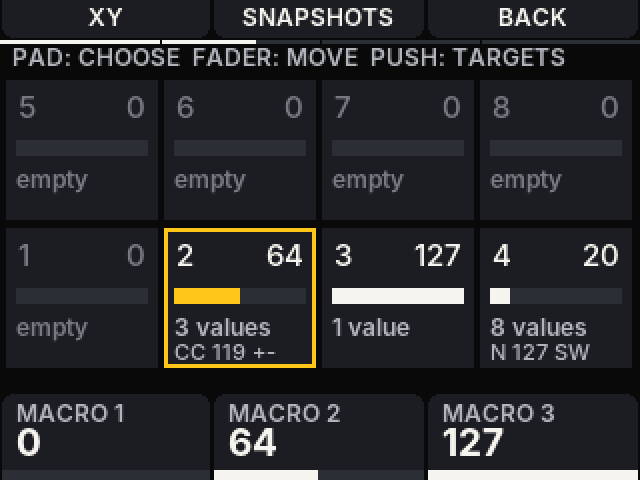
A macro moves up to eight values of tracks, pads, returns and Main at once, without changing the project's own values.
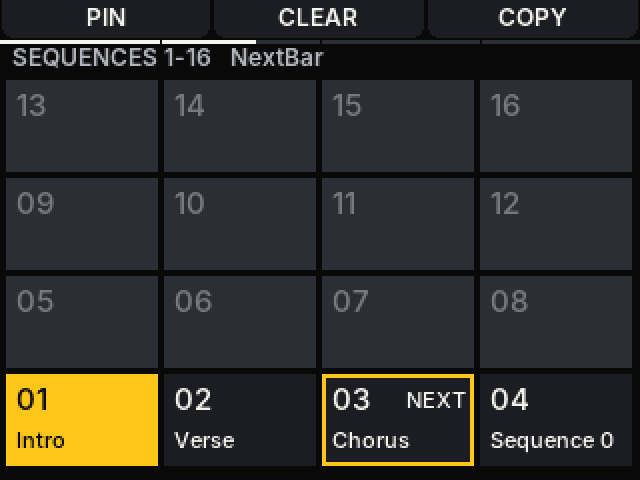
Hold SEQ and the pads become the sequencesPress one and it plays nextA project holds up to 128 sequences
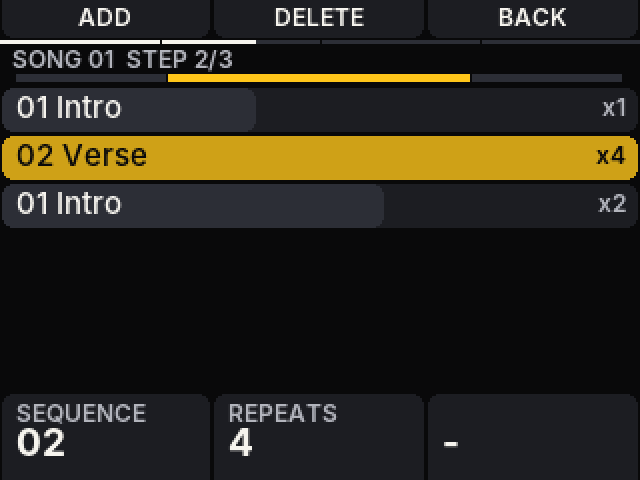
A song is a list of steps: a sequence and how many times it plays. B1 adds a step, K1 chooses its sequence, K2 its repeats.
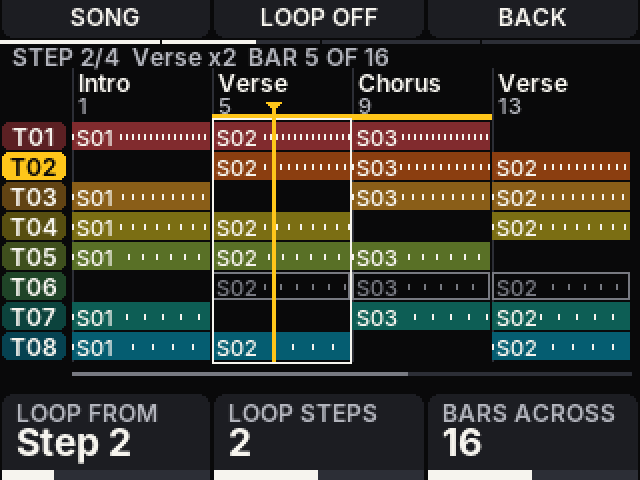
On the Song page, SHIFT and B2 draw the song as one timeline, with the sixteen tracks as lanes.
K1 or the fader sets the selected strip's levelK2 its pan, and on a track K3 its outputThe encoder moves along the strips: tracks 1 to 8, 9 to 16, the eight submixes, then the three returns and Main
With SHIFT held, the three knobs are sends 1 to 3.
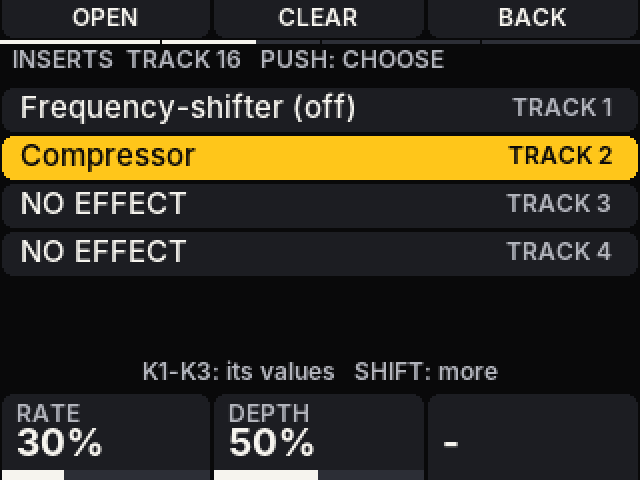
PUSH on a strip lists its insert slotsPUSH on a slot chooses an effect, or a plugin fileB1 opens it on its own page
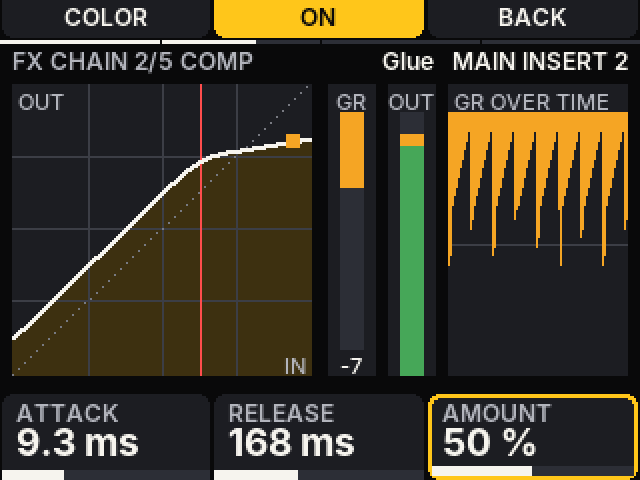
The Master FX Chain opens on Comp. − and + step through its five pages: EQ, Comp, Color, Stereo, Limit.
Saves at onceA project that was never saved gets the first free name: Project 01, Project 02Auto Save is a setting, off at first
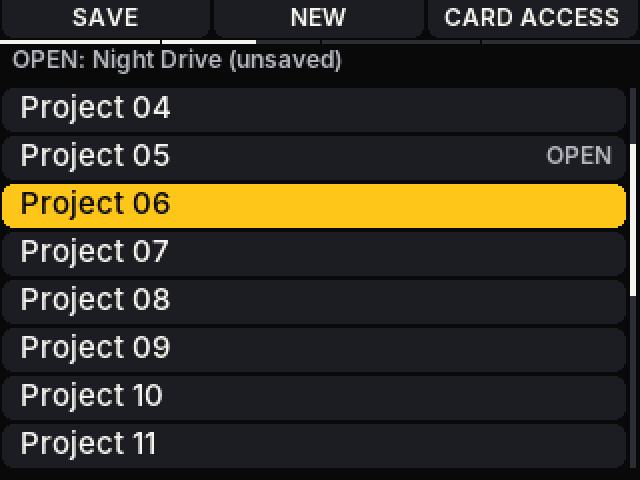
PUSH loads the selected project; it opens at once, saved or notB1 saves, SHIFT and B1 save as, B2 starts a new project (with unsaved changes it asks Discard changes? B1 Yes)− and + move between folder levelsProjects are saved to the SD card only
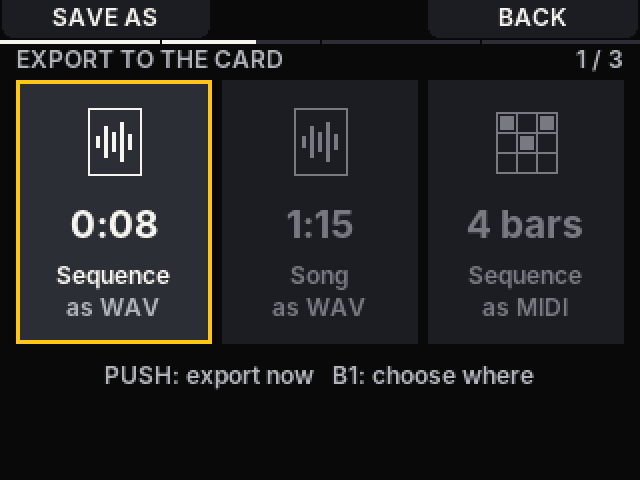
On the Projects page: the sequence or song as a WAV, the sequence as a MIDI file, or each track as its own file.
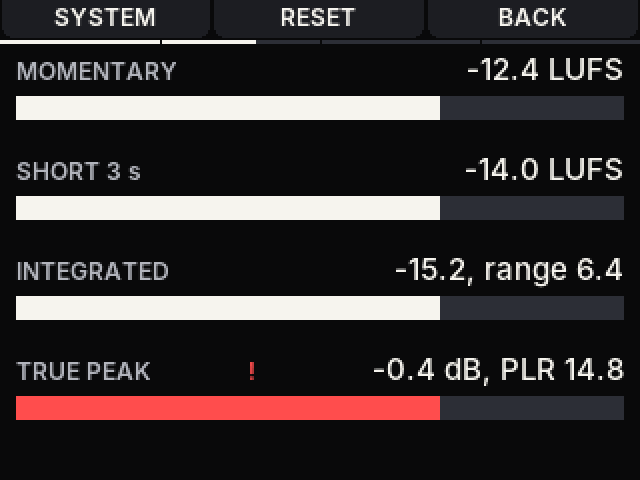
Meters show loudness and how hard the sound engine is working. STOP and pad 9 opens the Tuner.
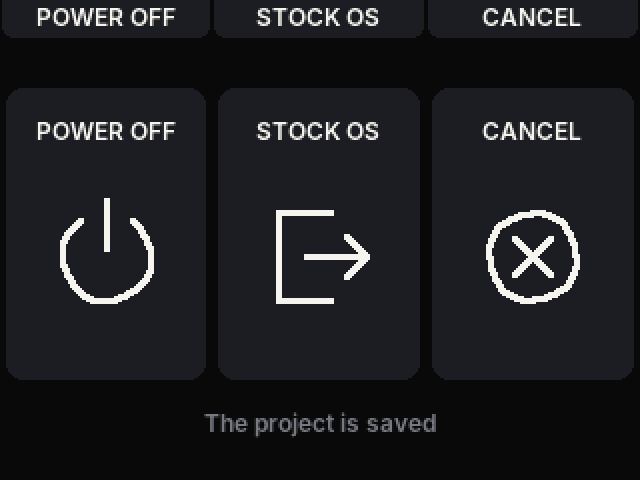
Press the power button, then B2 (Stock OS), and the MPC's own app comes backB1 powers offB3 keeps you in DFOS